Newsletter plugin
- Quick start
- Writing newsletters
- Scheduling
- Subscribers & forms
- Welcome & lead magnet
- Pro plugin
- Templates
- AI Agents
General
Looking for the Facebook posting plugin? See its docs →
Newsletter templates
Pro plugin feature. Templates give your daily edition a structured layout instead of the plain-prose default — a dated masthead, a sensory opener, a feature article with subhead, named sub-sections with eyebrow labels, a referral prompt, and a styled footer.
Where to find it
One Two Three Send → Templates. Menu entry only appears once the pro plugin is active.
Newsroom — the shipped template
Editorial daily-edition format inspired by the Love Netherlands / Picardi master format. The structure, top to bottom:
- Dated masthead — today’s date and your brand name, centred above a thin rule.
- Italic opener — “Dear [audience],” followed by 2–3 sensory sentences setting today’s mood. Serif font (Georgia / Iowan Old Style). Rotates each issue — never the same opener twice in a row.
- Feature article — large headline, italic one-sentence subhead/dek, 2–4 paragraphs of body, a “Read the full story” call-to-action.
- Three named sub-sections — each with an uppercase eyebrow label (e.g.
TACTIC,READER QUESTION,FROM THE ARCHIVE), a sentence-case heading, 60–100 words of body, a verb-led CTA. - Referral prompt — “Know someone who would like this?” forward CTA in a cream-coloured callout.
- Footer — site name, unsubscribe link.
Style
- Headings sans-serif, navy, 800 weight, slight negative letter-spacing.
- Eyebrow labels uppercase, light grey, 1.5px letter-spacing, 700 weight, with a thin top rule.
- Italic body uses Georgia / Iowan Old Style, 17–18px, line-height 1.7.
- Brand accent colours: navy
#1a2744, orange#FF6B1A, cream#fff4eb, link blue#1a6ac2.
Travel — daily-edition format
Travel is the second shipped template, designed for travel / culture / regional newsletters running a daily-edition format. Original layout — dated masthead, italic opener, sponsor callout, table-of-contents, themed sections, around-the-web links, cultural close, cross-promo widget, footer. Original markup and CSS; does not reproduce any specific newsletter publishing platform’s email code.
- Brand colour — defaults to a deep green appropriate for the original Love Ireland use case. Override via the
otts_pro_travel_brand_colorfilter. - Sections — masthead (dated), opener (italic, 60–80 words), feature article with subhead + CTA, three themed sub-sections (operator-configurable themes via spec), around-the-web links block, cultural close, cross-promo widget, footer.
- Best fit — places-and-stories newsletters that run daily or near-daily and have a strong sense of regional voice. Less appropriate for transactional / product-update newsletters where the Custom template is better.
Custom templates and pipelines
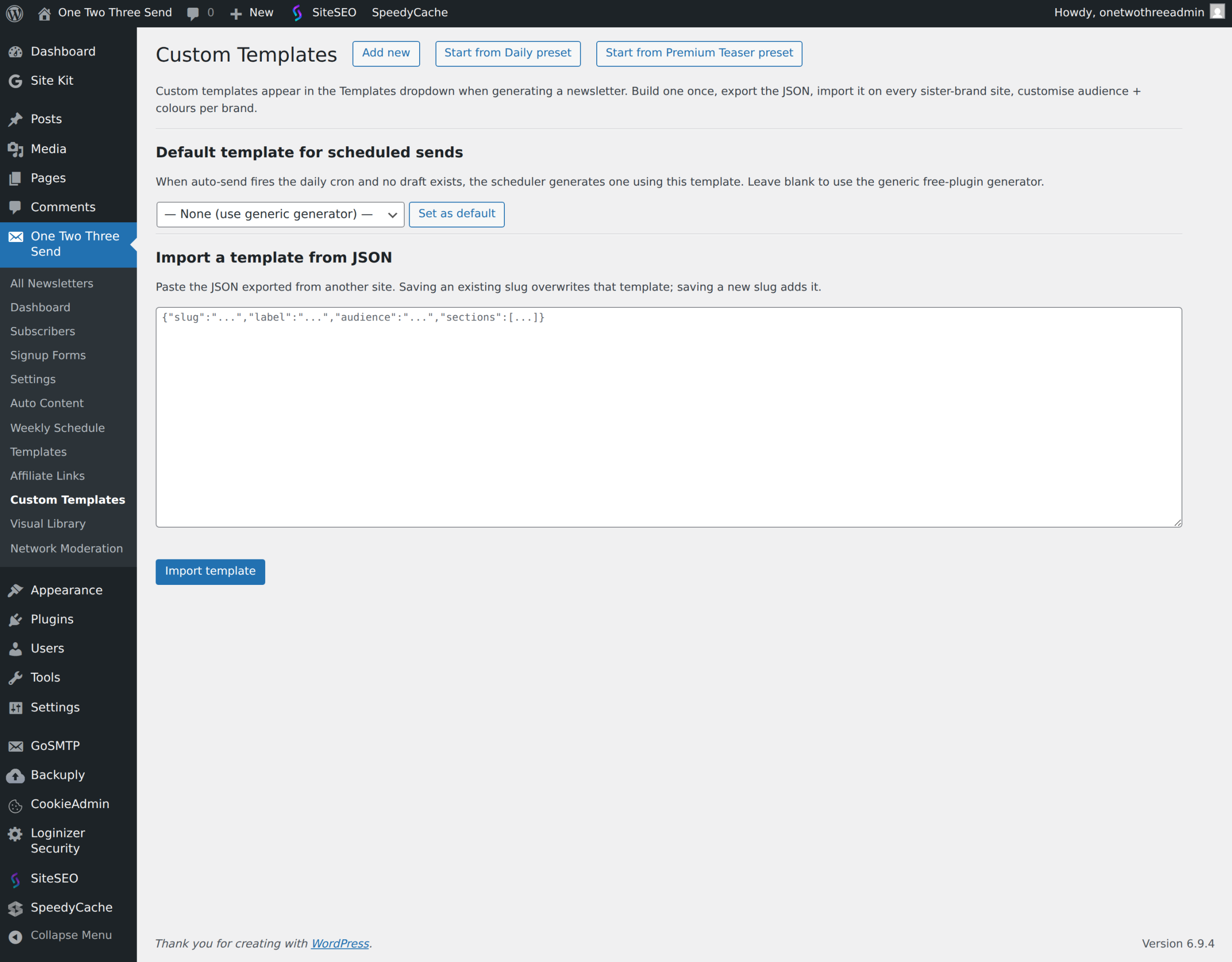
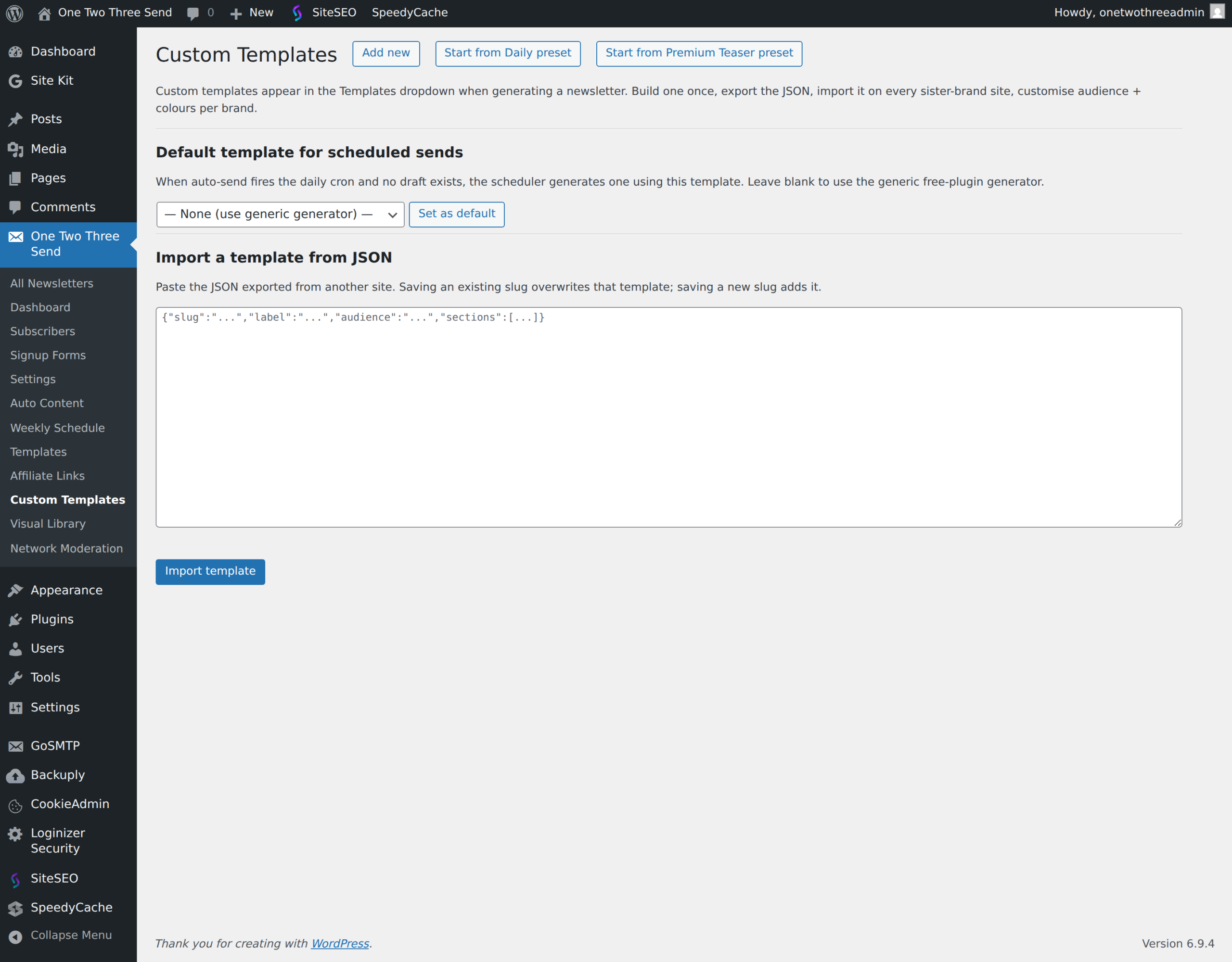
The Custom template is the operator-defined alternative to Newsroom and Travel. Available under One Two Three Send → Templates → Custom, it lets you specify section structure, brand voice, audience adjectives, sponsor blocks, and pipeline flags directly via a YAML-like spec.
Four generation pipelines
Custom templates can opt into one of four generation pipelines via spec flags:
- Legacy / free-form (default) — single Claude call returns the full HTML body, image search keywords are inferred from the prose. Lowest cost, lowest determinism. Works for newsletters that don’t reuse heavy structure across issues.
- Structured generation (
use_structured_generation: truein the template spec) — Claude returns structured JSON with per-sectionbody_html+ animage_searchblock that Claude itself writes for each section. The image picker uses those keywords verbatim, so “asparagus from the intro” can’t leak into the canal section. A Haiku-vision Judge pass spot-checks the assembled HTML and triggers surgical regeneration of any section that fails (regenerate_image, regenerate_section, edit_h1, remove_section). Best for travel / culture / regional newsletters where image-prose mismatches embarrass the brand. - Curated pipeline (
use_curated_pipeline: true) — zero AI calls in the body path. Today’s feature is whatever recent blog post hasn’t been featured in the last few days. The opener / food / venue rotate through per-brand libraries. The result is deterministic, repeatable, and never duplicates because the source is bounded site content, not Claude’s priors. Mirrors the proven Python script used to ship Love Netherlands’ daily edition. Best when you want consistent voice and zero per-issue Claude spend at the cost of less prose flexibility. - Text digest (TLDR) (
use_digest_pipeline: true) — a compact, image-free “TLDR” roundup: a linked headline plus a one-line AI summary per item, no pictures. Two sources: the most recent posts on this site (digest_source: 'posts') or the latest news from across the web via Google News (digest_source: 'web'withdigest_queryand an optionaldigest_localecountry code). Each edition keeps a varied mix: the pipeline gathers roughly three times more candidate stories than it needs, clusters them by underlying story with a quick AI pass, and keeps one headline per story — so five outlets covering the same event fill one slot, not five. Optional: setfacebook_urlto show a centered “Follow us on Facebook” button after the Nth item (facebook_after, default 3) — leave it unset and no button appears. Best for high-frequency news and fan sites.
The legacy free-form path remains the default for back-compat. Switching to structured or curated is a one-line edit in the template spec; the plugin transparently dispatches to the right pipeline at generate time.
When to pick which
- You want creative-feeling prose, can tolerate occasional image mismatches: legacy / free-form (default).
- You want creative prose AND consistent image-section matching: structured generation. Adds one Sonnet + one Haiku call per send (a few cents per newsletter).
- You’re producing a daily edition where consistency matters more than novelty, and you want zero per-issue AI spend: curated pipeline. Free per-send.
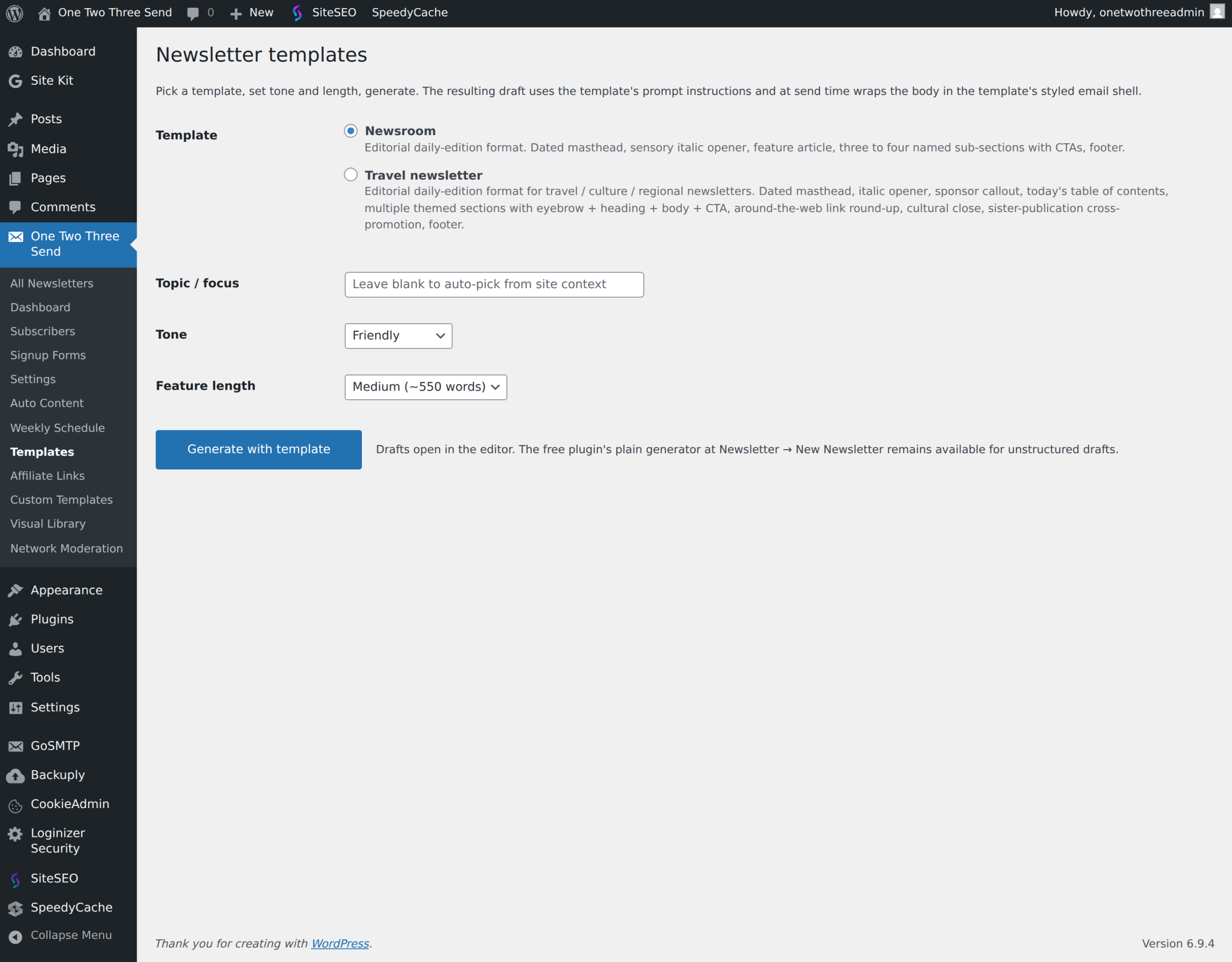
Generating with a template
- One Two Three Send → Templates.
- Pick a template (Newsroom is the only one shipped — your custom templates appear here too).
- Set tone, length, optional topic / focus.
- Click Generate with template. Claude is called with the template’s structured prompt; the response is parsed into Subject + body.
- Draft opens in the editor like any other newsletter. Subject line is set, body contains the full structured HTML, sub-section CTAs have placeholder
#hrefs for you to fill in.
Per-newsletter template selection
The chosen template is stored in _otts_template post meta. The free plugin’s One Two Three Send → Add New page still produces plain (unstyled) drafts; only drafts created from Templates carry the template marker.
Send-time rendering
The HTML body in post_content uses semantic class names (otts-opener, otts-feature-title, otts-eyebrow, otts-cta etc.). At send time, the pro plugin hooks otts_render_for_subscriber at priority 5 and wraps the body in the template’s styled email shell — masthead, brand-coloured CSS, footer. Plain-template (or no-template) newsletters use the free plugin’s default shell.
Editing template drafts
Drafts open in the standard WordPress visual editor. The HTML structure is visible — eyebrow headings, sub-section bodies, CTA links — and you can edit text, swap CTAs, reorder paragraphs. Avoid stripping the class attributes on tags (otts-opener, otts-eyebrow, etc.) because the send-time renderer keys off them. If you remove a class, the affected element falls back to default styling.
Voice rules baked into the prompt
- British English throughout
- No emoji
- No “ultimate / epic / must-read / game-changer / unleash”
- No “in this issue” boilerplate
- Vary the opener every issue — Claude is told never to start two issues the same way
- Sub-section CTAs are verb-led (“Read more”, “See the breakdown”, “Try it yourself”)
To override these rules for your own brand, write a custom template (next section) or extend the directive via your Site Context manual description.
Adding custom templates (developers)
Subclass OTTS_Pro_Template_Base and call OTTS_Pro_Templates::register() at plugins_loaded. Implement four methods:
slug()— unique key, e.g.digestlabel()— human-readable name shown in the dropdowndescription()— one-paragraph explanationbuild_prompt( array $args )— return the full Claude prompt for your template structurerender_email( string $content_html, WP_Post $post, array $subscriber )— wrap the stored HTML in your styled email shell
Once registered, your template appears in One Two Three Send → Templates and works the same way as Newsroom.
Next: AI Agents.
Plugin screenshots
Blog “Tours & experiences”
Single posts can auto-append a row of affiliate-linked Viator experience cards matched to the post’s city or landmark (also available as the shortcode).
“Upgrade to paid” callout
The love-brand daily email can show a support/upgrade block (text + button) below the experiences banner, brand-aware via {brand}/{audience} tokens.
Per-site colours
The “Tours & experiences” widget, the upgrade callout, and the cross-promo “Other newsletters you might like” block each take a per-site colour palette so they match your brand on both web and email.
Digest item freshness
Digest-style templates only include posts published in the last 7 days, so slow posting weeks never resurface old stories as today’s news. If fewer than 3 posts exist in that window, the digest widens to older posts so your send still goes out. To change the window for a template, add "max_item_age_days": 3 (for example) to the template spec.