Newsletter plugin
- Quick start
- Writing newsletters
- Scheduling
- Subscribers & forms
- Welcome & lead magnet
- Pro plugin
- Templates
- AI Agents
General
Looking for the Facebook posting plugin? See its docs →
Scheduling
This plugin can send newsletters automatically on a schedule. Free plugin users configure it under One Two Three Send → Settings → Schedule. Pro plugin users get a unified Weekly Schedule page with per-day controls and a generation/send-time split — covered below.
Frequency
- Manual (default) — no cron, no automatic action. You generate and send by hand.
- Daily — fires every day at the configured time.
- Weekly / Fortnightly — fires on the configured day of week.
- Monthly — fires once a month.
Day and time
The Day field applies to weekly and fortnightly schedules. Time is in your site timezone (set under WordPress Settings → General → Timezone). Best windows for newsletters are typically Tuesday–Thursday, 8–11am local — your audience will tell you what works.
Manual approval (default)
With Auto-send without approval off, the cron does not send anything. Instead, when the trigger fires:
- If a draft newsletter exists, the plugin emails the site admin a link to review and click Send Now.
- If no draft exists, the plugin does nothing — you generate manually when ready.
This is the safest mode. Recommended for the first month or two while you tune your site context and verify drafts read well.
Auto-send (free plugin)
Tick Auto-send without approval and the cron sends without you in the loop. Behaviour:
- If a draft exists, it is sent at the scheduled time.
- If no draft exists, the plugin auto-generates one (tone: friendly, length: medium) and sends it immediately.
The free plugin's auto-send is intentionally minimal — no editor pass, no audit gate. For unattended sending in production, use the pro plugin's Weekly Schedule.
Pro plugin — unified Weekly Schedule
Auto-send paid newsletters (Pro 2.14.110+)
The Weekly Schedule has a separate Auto-send paid toggle alongside the main Auto-send. By default it is off: paid newsletters are always held for manual approval, even when Auto-send is on for free issues — the cautious default for sites that monetise. Turn it on when you want paid issues to fire automatically too. It requires Auto-send to also be on (paid auto-send without the umbrella toggle would be inconsistent) and inherits the same editor pass + audit gate: a paid issue that fails the audit is held just like a free one would be, with the admin notified.
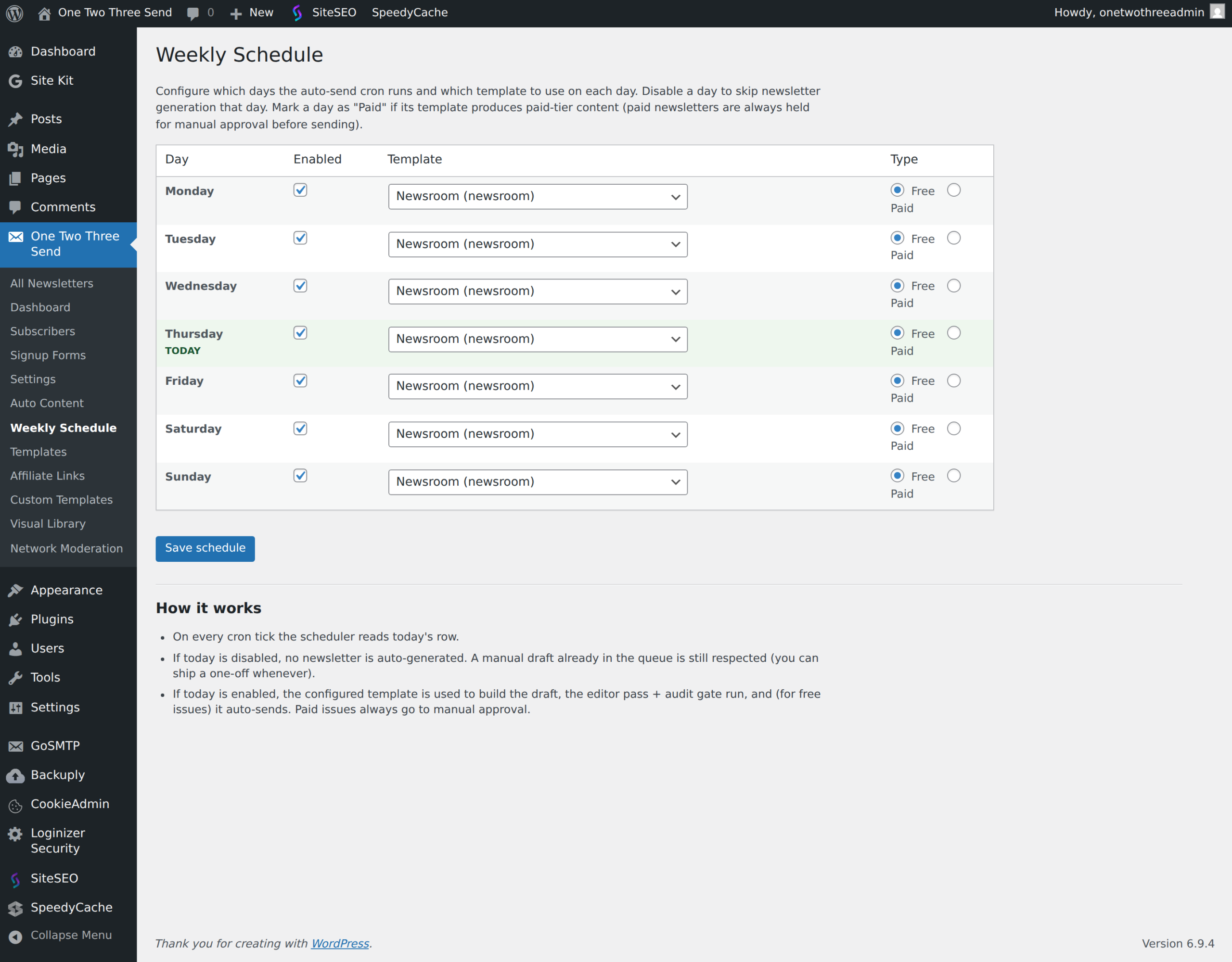
The pro plugin replaces the free Settings → Schedule UI with One Two Three Send → Weekly Schedule (since 2.14.110). One page covers everything: when to generate, when to send, what runs on which day.
Global controls (top of the page)
- Generation time (default 07:30) — when today’s draft is built. Set earlier than the send time if you want to review before it ships.
- Send time (default 16:00) — when today’s draft is auto-sent. Set equal to the generation time for a single-tick gen + send.
- Auto-send — off = newsletter held for manual approval; on = ships at the send time.
- Auto-send paid (new — default off) — also auto-send issues marked Paid. Off keeps the existing safety (paid held for approval); flip on to ship paid daily without admin intervention. Requires Auto-send to also be on.
Per-day rows (Mon–Sun)
- Enabled — uncheck to skip newsletter generation entirely on that day.
- Template — Newsroom, Travel, or any Custom template. The template’s prompt drives the draft.
- Type — Free or Paid. Paid issues are held unless Auto-send paid is also on.
What runs on each cron tick
- At generation time, the plugin checks today’s row. If enabled and no draft exists yet, it generates one using the configured template.
- At send time, the editor pass runs (Claude applies confident grammar / tone / cliché edits) → audit gate (any blocking FAIL holds the send for manual approval) → if Auto-send is on (and Auto-send paid is on for paid issues), the newsletter ships.
- If the generation cron didn’t fire for any reason (host hiccup, missed tick), the send cron generates on the fly — the newsletter ships when it can.
This is the safe way to run unattended.
Scheduling caveats
- WP-Cron only fires when someone visits the site. For low-traffic sites, set up a real cron hitting
wp-cron.phpevery five minutes — your host's control panel usually has a UI for this. - Always run a test send to your own email before turning auto-send on.
- The schedule applies globally — there is one schedule per install. Sending free daily and paid weekly from the same install requires the pro plugin's Weekly Schedule.
Next: Subscribers & forms.
Plugin screenshots