You upload a 2GB video file to your course platform. The progress bar hits 100%. You refresh the page—and the video still isn’t playable. Instead, you see “Processing” or “Encoding in progress.”
What’s happening isn’t a bug. It’s transcoding: the platform is converting your uploaded file into multiple formats and resolutions so learners on different devices and bandwidths can stream it smoothly. But most operators don’t know what’s actually being created, how long it takes, or when pre-encoding on your own machine saves hours of waiting.
What transcoding creates
When you upload a single .mp4 file, the platform generates:
- Multiple resolutions: 1080p, 720p, 480p, and sometimes 360p. Adaptive bitrate streaming (ABR) lets the player switch resolutions mid-playback based on the viewer’s connection speed.
- Audio-only streams: A separate audio track for mobile users on metered data.
- Thumbnail images: Usually extracted at the 5-second mark or generated from the first keyframe.
- Closed-caption tracks (if enabled): Some platforms auto-generate .vtt or .srt subtitle files using speech-to-text.
Platforms like Teachable, Thinkific, and Kajabi handle this server-side. You upload once; they generate four to six derivative files. For a 60-minute 1080p video at 30fps, expect transcoding to take 15–45 minutes depending on platform load.
When transcoding stalls
Three scenarios slow or break the process:
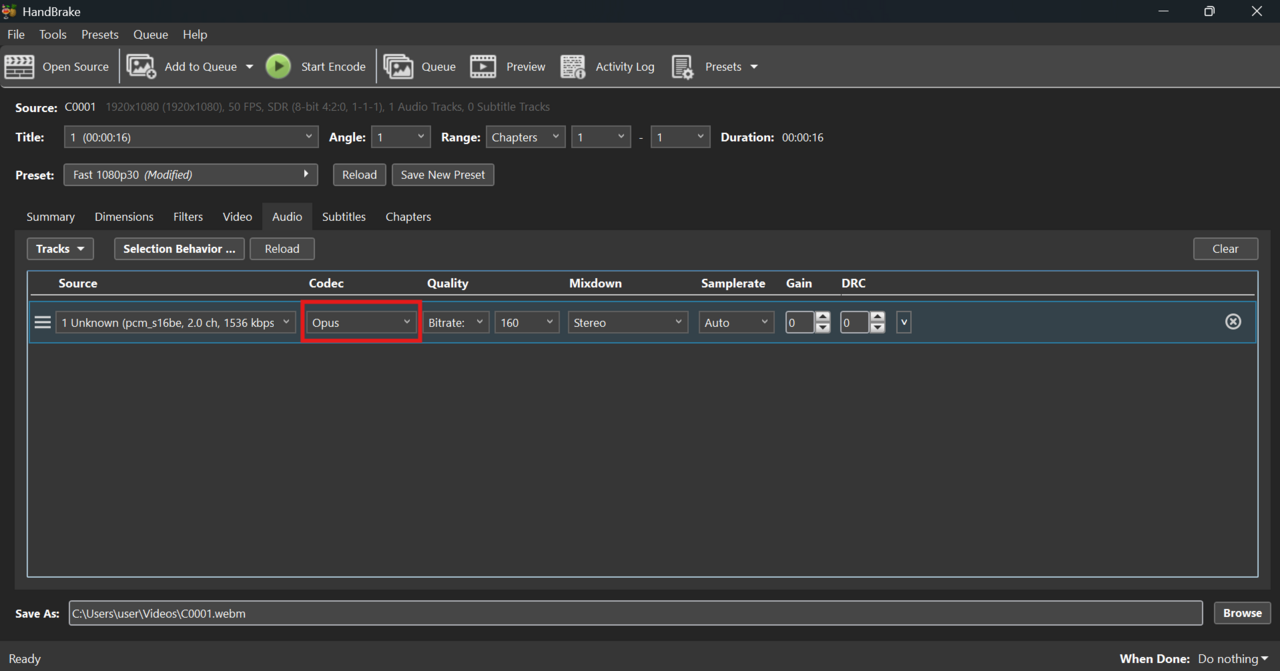
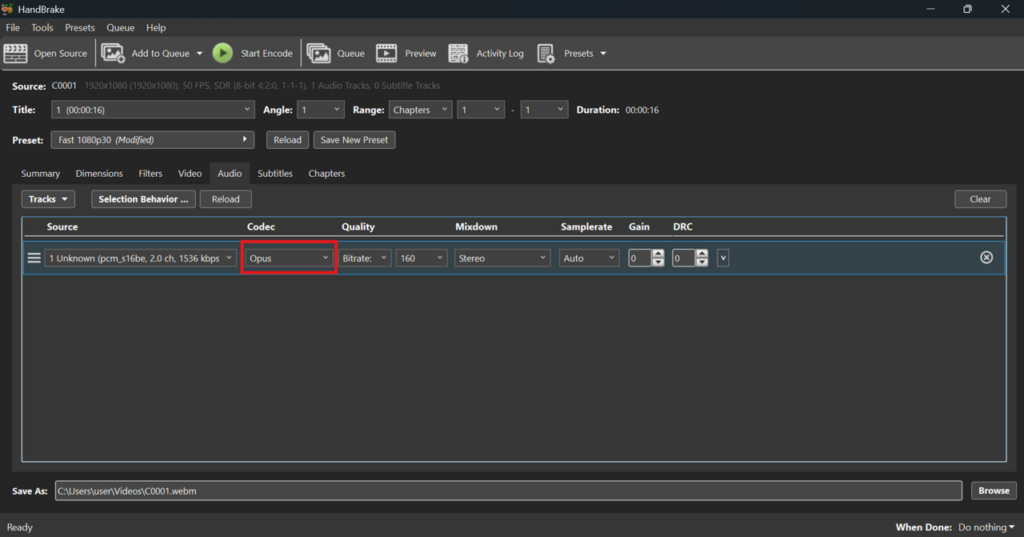
Variable frame rate (VFR) source files. Screen recordings from tools like OBS or Loom sometimes use VFR to save file size. Transcoders expect constant frame rate (CFR). If your upload takes longer than expected or fails silently, re-encode to CFR using Handbrake (preset: “Fast 1080p30”) before uploading.
Non-standard codecs. Most platforms expect H.264 video and AAC audio. If you shot in ProRes, HEVC, or VP9, the transcoder may reject the file or produce a low-quality output. Check your export settings: H.264, AAC, .mp4 container, and progressive scan (not interlaced).
Peak-hour congestion. Transcoding is compute-intensive. Platforms batch-process uploads. If you upload at 9 a.m. EST on a Tuesday when everyone else is launching courses, your video joins a queue. Mid-afternoon or evening uploads often finish faster.
When to pre-encode locally
If you’re uploading more than five videos in a session, pre-encoding saves platform processing time and gives you control over quality.
Use Handbrake (free, cross-platform) with these settings:
- Preset: “Fast 1080p30” or “HQ 1080p30 Surround” if you have multichannel audio
- Format: MP4
- Video codec: H.264, constant quality RF 20–22 (lower number = higher quality)
- Audio codec: AAC, 128 kbps stereo
- Framerate: Constant, 30fps (or 25fps for PAL regions)
A 60-minute talking-head video at RF 22 outputs around 800MB–1.2GB. The platform still transcodes it, but processing time drops by 30–50% because the source is already optimized.
What you lose with platform transcoding
Most platforms cap output at 1080p even if you upload 4K. Kajabi, Teachable, and Thinkific all downsample. If you want to deliver 4K to learners, you’ll need to self-host with a video CDN like Bunny.net or Mux—but that adds $20–$200/month depending on bandwidth.
Platform transcoders also strip metadata. Chapter markers, embedded subtitles, and custom thumbnails uploaded in your video file are ignored. You’ll need to add those through the platform’s interface after transcoding finishes.
If you’re launching a course in the next 48 hours and uploading a dozen videos, start three days early. Transcoding delay is the most common reason course launches miss their scheduled time.
Want more operator tactics like this? Subscribe to One Two Three Send—one article every morning on the tools, infrastructure, and strategy behind online businesses.