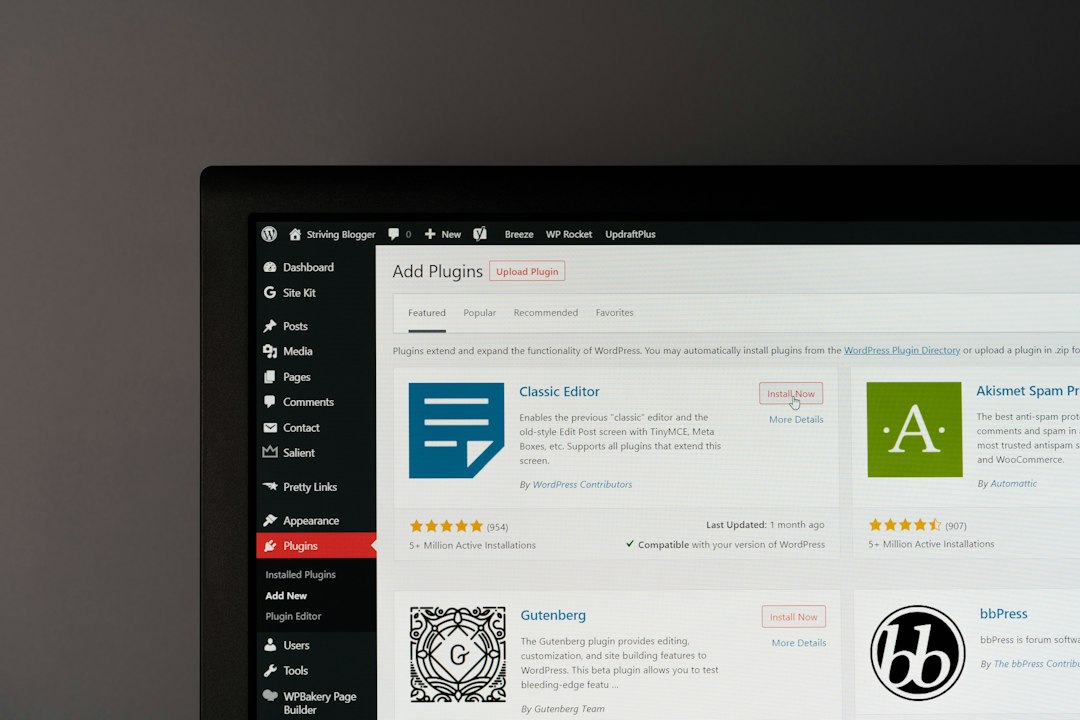
WordPress introduced per-plugin auto-update toggles in 5.5, and most operators treat them like a binary choice: turn them all on for convenience, or leave them all off out of caution. Both approaches miss the middle ground where you actually save time without risking downtime.
The feature works simply—WordPress checks twice daily for plugin updates, and if auto-update is enabled for a given plugin, it installs the new version without asking. No dashboard visit required. But the consequences of a bad update vary wildly depending on which plugin breaks.
What breaks when a plugin auto-updates badly
Not all plugin failures are equal. A broken SEO plugin might quietly stop rendering meta tags—you won’t notice for weeks. A broken caching plugin can return 500 errors to every visitor within seconds.
The worst auto-update failures happen with plugins that touch three areas: authentication, caching, and database schema. If a security plugin misconfigures after an update, you can lock yourself out. If a caching plugin throws a PHP fatal error, your site goes down. If a form plugin botches a database migration, you lose submissions.
Plugins that only add admin-side functionality—like editorial workflow tools or media library organizers—carry much less risk. If they break, your front-end keeps running, and you can troubleshoot during business hours.
Enable auto-updates for these
Turn on auto-updates for plugins that meet all three criteria: maintained by a well-known team, installed on millions of sites, and non-critical to front-end rendering.
Examples: Yoast SEO, Akismet, Jetpack’s individual modules, Google Site Kit, and most analytics integrations. These teams test across thousands of hosting environments, and a breaking change would surface loudly within hours. They also tend to handle updates conservatively—bug fixes and security patches, not rewrites.
If you’re running a newsletter archive or content site on WordPress, plugins like Redirection, Slim SEO, or public post embeds are usually safe bets. They’re stable, narrowly scoped, and updated infrequently.
Leave these on manual
Disable auto-updates for any plugin that controls caching, security rules, checkout flows, membership gates, or server-level behavior. That includes WP Rocket, Wordfence, WooCommerce, paid membership plugins, and anything that writes .htaccess rules.
Also disable auto-updates for plugins you’ve customized—either via filters in your theme’s functions.php or by editing plugin files directly. An auto-update will overwrite your changes silently, and you’ll only notice when something stops working.
If a plugin hasn’t been updated in over a year, don’t enable auto-updates. Dormant plugins that suddenly push an update are more likely to introduce compatibility issues, especially if WordPress core has moved forward two or three major versions in the meantime.
The staging-first workflow
If you’re managing a site that can’t afford any downtime—something generating revenue or serving a live audience—run a staging environment and test updates there first, even for low-risk plugins.
Most managed WordPress hosts provide staging with one-click cloning. Push all available updates to staging, wait 24 hours, check front-end rendering and key workflows, then promote to production. This adds a day of latency, but it catches edge cases that wouldn’t surface in your local environment.
For solo operators running lean, a middle path: enable auto-updates on 60–70% of installed plugins (the low-risk ones), and manually update the critical 30% once a week during a scheduled maintenance window. WordPress will email you when it auto-updates something, so you’ll have a log.
When auto-updates fail silently
WordPress’s auto-update routine doesn’t always tell you when something went wrong. If the update process times out—usually because a plugin’s install routine takes longer than PHP’s execution limit—the plugin is left in a half-updated state. The files are new, but the database schema didn’t migrate.
This is rare but not impossible. It’s more common on shared hosting with aggressive resource limits. If you’re enabling auto-updates, check your hosting dashboard for PHP timeout settings. Anything below 60 seconds increases the chance of a partial update.
One non-obvious safeguard: keep your total plugin count under 25. The more plugins WordPress has to evaluate during its twice-daily update check, the higher the cumulative risk that one update will collide with another or trigger a cascading failure.
Want more operations breakdowns like this? Subscribe to One Two Three Send for weekly deep-dives on the tooling and workflows that run online businesses.