Category: AI Tools

  • AI prompt templates fail when context drifts—version them

    AI prompt templates fail when context drifts—version them

    AI prompt templates fail when context drifts—version them
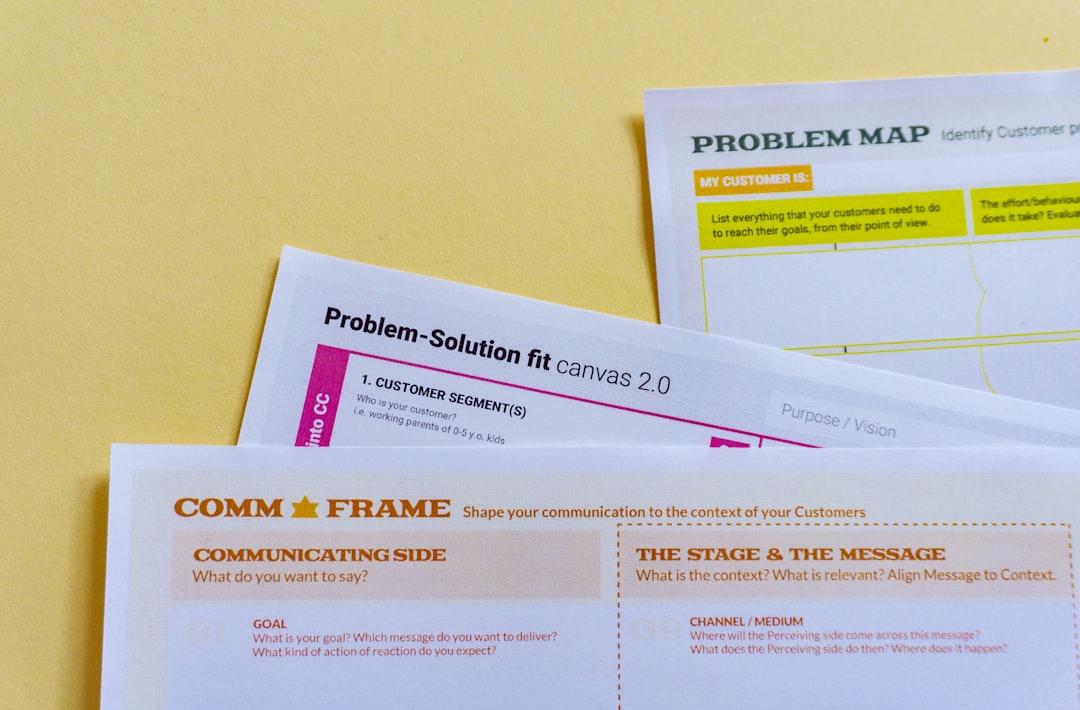
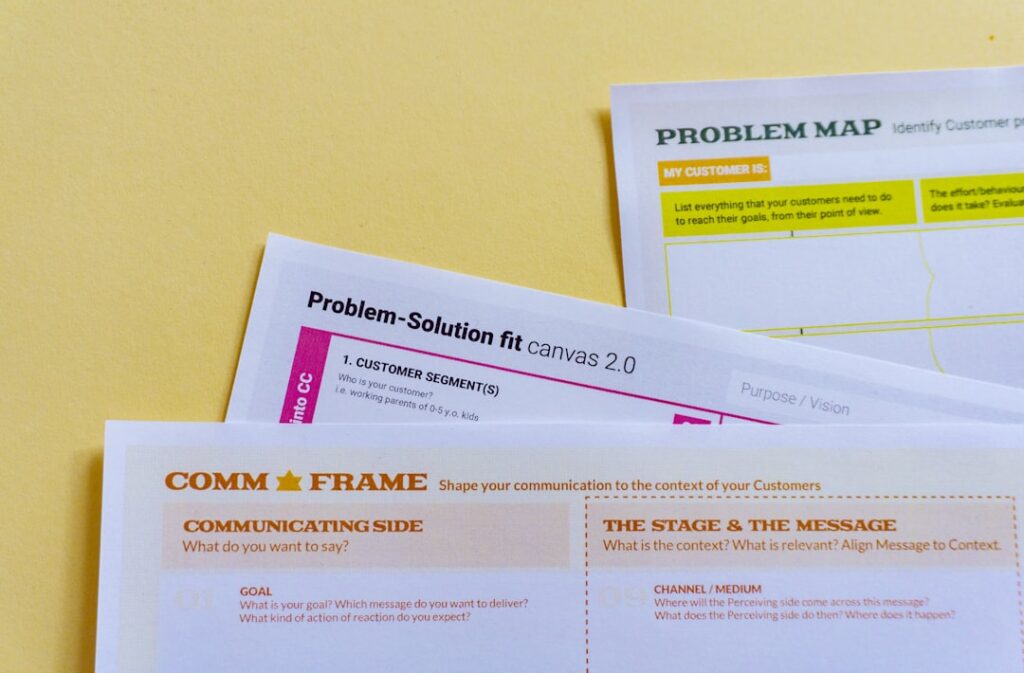
    Photo by Daria Nepriakhina 🇺🇦 on Unsplash

    If you’ve built a library of AI prompts that worked beautifully in March and now produce garbage in July, you’re not alone. The problem isn’t the model—it’s context drift, and most solo operators don’t version their prompts the way they version code.

    AI models change. Your business changes. The examples you fed into a prompt six months ago referenced products you no longer sell, a tone you’ve since abandoned, or input data structured in a format you’ve updated twice. When you paste that prompt into Claude or ChatGPT today, it misfires—and you waste twenty minutes editing output instead of moving on.

    Here’s how to version AI prompts so they stay useful, and when to retire them entirely.

    Why prompts degrade faster than you think

    Three things break prompts over time:

    • Model updates. OpenAI and Anthropic ship new versions every few months. A prompt optimized for GPT-4 in early 2026 may produce different results on the July release, even if the underlying capability improved. Temperature defaults, token handling, and instruction-following behavior all shift.
    • Your own vocabulary drift. You wrote a prompt template in February using placeholder variables like {{product_name}} and {{target_audience}}. By June, you’ve segmented your audience into three tiers, renamed your flagship product, and introduced a new content format. The old prompt doesn’t know any of this.
    • Corpus updates. If your prompt references specific URLs, doc IDs, or brand names, and any of those change, the AI hallucinates or defaults to generic output. A prompt that said “tone should match our About page at example.com/about” fails silently when you redesign the site and move that content.

    The result: you keep a folder of prompts, reuse one that used to work, and spend more time fixing the output than if you’d written from scratch.

    How to version prompts like code

    Treat each prompt as a versioned artifact. When you create or update a prompt that you’ll reuse, save it with a version number and a changelog note. This doesn’t require Git—a plain text file or a Notion doc works fine.

    Example structure:

    social-caption-v3.txt
    Last updated: 2026-07-15
    Changes: Removed reference to discontinued course; added instruction to include CTA link; clarified character limit to 280.

    When the prompt stops working well, duplicate it, update it, and increment the version. Keep the old one in an archive folder. If the new version performs worse, you can roll back and compare what changed.

    This costs you thirty seconds per update. It saves you fifteen minutes every time you revisit the prompt and wonder why it’s producing weaker output than you remember.

    Test prompts on sample data before you commit

    Before you version and archive a prompt, run it against three sample inputs that represent real use cases. Save the outputs. This creates a regression test.

    When you update the prompt, run the same three samples again. If the new version produces noticeably worse results on any of them, you’ve caught a regression before it cost you production time.

    This is especially useful for prompts that generate structured output—JSON, CSV, or formatted tables. A small wording change can break parsing logic downstream.

    When to retire a prompt entirely

    Not every prompt should be versioned forever. If you haven’t used a prompt in sixty days, it’s probably no longer relevant. Archive it separately or delete it.

    If you’ve versioned the same prompt four or five times and each version required substantial rewrites—not just tweaks—the underlying task has probably evolved beyond what a single template can handle. At that point, you’re better off writing fresh prompts on demand or splitting the task into smaller, more stable sub-prompts.

    Versioning is useful when the task is stable but the context shifts. If the task itself is unstable, the prompt library becomes clutter.

    One small addition that prevents most drift

    Add a dateline to every prompt: Context as of: July 2026.

    This reminds you—and the AI—that the instructions were written for a specific moment. When you revisit the prompt six months later, that dateline signals that you should review it before running it. It’s a forcing function that costs zero tokens and prevents silent degradation.

    Prompt versioning isn’t glamorous. But if you’re running a content business and relying on AI for drafts, summaries, or structured data extraction, unversioned prompts are technical debt. You’ll pay it back in wasted output and rework time.

    Got a prompt versioning system that works for you? Reply and tell us—we’ll feature operator workflows in a future piece. And if you want more AI tool breakdowns like this, subscribe to One Two Three Send for weekly deep dives on the tools solo operators actually use.

    Heads up — some links in this article are affiliate links. If you sign up through them, we may earn a small commission at no extra cost to you. We only recommend tools we use ourselves.

  • ChatGPT’s Custom Instructions feature: what it actually remembers

    ChatGPT’s Custom Instructions feature: what it actually remembers

    ChatGPT's Custom Instructions feature: what it actually remembers
    Photo by Andrew Neel on Unsplash

    ChatGPT’s Custom Instructions feature lets you define persistent context that carries across every new chat. For solo operators running content calendars, client briefs, or repetitive workflows, it’s supposed to eliminate the copy-paste ritual of re-stating your role, audience, and formatting preferences every single time.

    In practice, it works—but only within specific boundaries that aren’t surfaced in the UI. Understanding what the feature actually retains, when it gets overridden, and how token allocation works will determine whether it saves you time or quietly undermines your prompts.

    What Custom Instructions stores

    The feature splits into two text boxes: “What would you like ChatGPT to know about you?” and “How would you like ChatGPT to respond?” Each accepts up to 1,500 characters. That’s roughly 300–400 tokens, depending on vocabulary.

    The first box is for context: your role, business model, audience, constraints. The second is for output preferences: tone, structure, length, formatting rules.

    Both get prepended to every new conversation as invisible system-level instructions. They don’t appear in the chat transcript, but they consume part of the context window before your first user message even loads.

    This matters because ChatGPT-4’s context window is 8,192 tokens (standard) or 32,768 tokens (extended, via API or Plus with longer chats enabled). If your Custom Instructions use 400 tokens and your conversation history fills another 6,000, you’ve got roughly 1,800 tokens left for the next user prompt and model response combined. Long conversations will eventually push Custom Instructions out of active memory—the model still “sees” them in the system prompt, but prioritises recent turns.

    When instructions get ignored

    Custom Instructions apply to new chats only. If you edit them mid-conversation, the changes don’t retroactively alter the existing thread. Start a fresh chat to pick up the edits.

    They also don’t override explicit contradictions in your user prompt. If your Custom Instructions say “always respond in bullet points” but your message says “write this as a paragraph,” the user prompt wins. The model treats Custom Instructions as defaults, not mandates.

    This is useful when you need to temporarily deviate—run a one-off analysis in a different format—but it also means vague user prompts can dilute or ignore your standing instructions entirely. Specificity in the moment beats standing context.

    Finally, Custom Instructions don’t persist across different ChatGPT interfaces. They apply to the web UI and the iOS/Android apps, but not to API calls, plugins, or third-party wrappers. If you’re running ChatGPT via Zapier, Make, or a custom script, you’ll need to inject that context manually in each request.

    What to put in—and what to skip

    Effective Custom Instructions are narrow and structural, not aspirational. “I run a weekly newsletter about SaaS pricing for B2B founders” is useful. “I value creativity and outside-the-box thinking” is not—it’s too abstract to influence output in a measurable way.

    Good candidates for the context box:

    • Your primary business model and audience (e.g., “solo operator running a paid Substack on AI regulation”)
    • Constraints you apply consistently (e.g., “posts are 800 words, American English, no listicles”)
    • Tools or platforms you use regularly (e.g., “I use ConvertKit and WordPress, not Mailchimp or Wix”)
    • Terminology preferences (e.g., “call them ‘subscribers,’ not ‘users’”)

    Good candidates for the response box:

    • Structural defaults (e.g., “use H2 subheadings, no H3s”)
    • Tone boundaries (e.g., “conversational but not casual, no exclamation marks”)
    • Output length (e.g., “default to 600–800 words unless I specify otherwise”)
    • Formatting rules (e.g., “return HTML, not Markdown”)

    Skip anything that changes project-to-project. Don’t embed client names, specific article topics, or one-off formatting requests—those belong in the user prompt, not standing instructions.

    One non-obvious tip: version your instructions

    Custom Instructions have no built-in versioning or change log. If you tweak them and output quality shifts, you won’t have a record of what changed unless you save snapshots externally.

    Keep a simple text file or note with dated versions of your instructions. When you experiment—tightening tone, adding a structural rule, removing a constraint—log the edit and the date. If output degrades or drifts after a few weeks, you can diff versions and pinpoint what shifted.

    This is especially useful if you’re running ChatGPT in parallel with Claude or another model. Custom Instructions are ChatGPT-specific, but the principles transfer. A versioned reference file lets you port tested context patterns across tools without starting from scratch each time.

    If you’re using Custom Instructions already, reply and tell us what’s in yours—or what you’ve tried and removed. We’re cataloging what actually works for operators running content businesses, not just what the feature says it does.

    Heads up — some links in this article are affiliate links. If you sign up through them, we may earn a small commission at no extra cost to you. We only recommend tools we use ourselves.

  • AI content rewriter tools break your voice—here’s the tradeoff

    AI content rewriter tools break your voice—here’s the tradeoff

    AI content rewriter tools break your voice—here's the tradeoff
    Photo by Deepak Gupta on Unsplash

    Most AI content rewriter tools promise the same thing: take your draft, smooth out the rough patches, tighten the prose, and hand back something publishable in seconds. They work. The output is cleaner. But every operator who uses them regularly hits the same problem after a few weeks: the writing stops sounding like them.

    This isn’t about quality. The rewritten version is often technically better—shorter sentences, fewer filler words, clearer structure. The problem is that it’s better in a way that erases the small habits and choices that make your voice distinct. The casual aside. The sentence fragment. The specific word you’d use instead of the synonym the model picked.

    Readers don’t consciously notice voice most of the time, but they feel it when it shifts. If your last ten posts had a consistent rhythm and suddenly post eleven reads like it came from a different person, open rates drop. Replies dry up. The content still works, but the connection weakens.

    What rewriters actually change

    AI rewriter tools—whether standalone like Wordtune or built into larger platforms like Jasper and Copy.ai—operate by rephrasing your input to match patterns the model learned from training data. That data skews toward polished, formal, widely-published writing. The model doesn’t know your tics. It doesn’t know you always use “folks” instead of “people” or that you start half your paragraphs with a dependent clause.

    Here’s what typically gets flattened:

    • Sentence rhythm. If you write in a mix of long and short bursts, the rewriter will smooth it into medium-length sentences.
    • Colloquialisms. Casual phrases get swapped for neutral equivalents. “A pain to set up” becomes “difficult to configure.”
    • Redundancy you use for emphasis. Repeating a word or idea for effect gets trimmed as inefficiency.
    • Personality markers. Em dashes, parenthetical asides, rhetorical questions—anything that breaks formal structure tends to get rewritten or removed.

    None of this is wrong. But if those elements are why your readers recognize your writing, stripping them out is a problem.

    When rewriters make sense

    There are situations where flattening your voice is the correct tradeoff. If you’re writing help documentation, product updates, or onboarding emails, clarity beats personality. Readers aren’t there for your voice—they’re there to solve a problem or understand a feature. A rewriter can take a tangled explanation and make it scannable in seconds.

    Rewriters also help when you’re stuck. If you’ve written the same paragraph three times and it still feels off, running it through a tool can break the loop. You won’t keep the output verbatim, but it gives you a new angle to edit from.

    And if English isn’t your first language, rewriters handle grammar edge cases faster than you can look them up. The risk is still there—your voice might get smoothed out—but the time saved often outweighs it.

    How to use them without losing yourself

    If you’re going to use a rewriter regularly, treat it like a first-pass editor, not a replacement for your judgment. Here’s the workflow that works:

    Write the full draft first. Don’t rewrite as you go. Get your ideas out in your natural voice, then decide which sections need help.

    Rewrite in chunks, not whole pieces. Run one paragraph or section at a time. If you feed an entire post into a rewriter, you lose control over which changes matter and which don’t.

    Edit the rewrite. Don’t publish the output as-is. Read it aloud. If a sentence doesn’t sound like something you’d say, change it back or meet halfway. The goal is to use the tool’s structure while keeping your word choices.

    Keep a voice reference. Save three or four posts you’re proud of—ones where the voice feels right. Before you hit publish on something that’s been rewritten, compare it. If the tone feels off, you’ll catch it.

    The long-term cost

    The risk isn’t just that one post sounds different. It’s that if you rely on a rewriter for every piece, you stop practicing the skill of editing your own voice. Over six months, your drafts start to sound more like the tool’s output even before you run them through it. You’re training yourself to write in a way that needs less rewriting, which means writing in a way that sounds like everyone else using the same model.

    This is fixable, but it requires noticing it’s happening. If you’ve published twenty posts in the last two months and none of them feel like you anymore, the rewriter is doing too much of the work.

    Voice is one of the few competitive advantages solo operators have. It’s free, it’s hard to replicate, and it’s why readers pick your site over the fifty others covering the same topics. Rewriters are useful tools, but they’re not neutral. Every time you use one, you’re making a tradeoff. Just make sure you’re choosing it, not defaulting to it.

    Trying to balance speed and voice in your own workflow? Reply with what you’re struggling with—I’ll cover reader questions in an upcoming piece.

  • AI prompt version control: when edits break what used to work

    AI prompt version control: when edits break what used to work

    AI prompt version control: when edits break what used to work
    Photo by Alexander Sutton on Unsplash

    You’ve spent an hour tuning a prompt that finally generates clean product descriptions. Two weeks later, you tweak one sentence to fix a minor issue—and the entire output degrades. You can’t remember what you changed. You don’t have the old version. You’re starting from scratch.

    This is the hidden tax of working with AI tools as a solo operator: prompt drift. Unlike code, prompts rarely live in version control. Unlike templates, they don’t auto-save revisions. You iterate in a text field, overwrite what worked, and lose the breadcrumb trail back to stable output.

    If you’re using Claude, ChatGPT, or any API-driven AI tool more than once a week, you need a lightweight system to track prompt versions before an accidental edit costs you an afternoon of re-testing.

    Why prompts break when you edit them

    AI models are sensitive to phrasing, order, and context window position. A prompt that works today can fail tomorrow if you:

    • Reorder instructions (models often weight earlier instructions more heavily)
    • Add examples that conflict with existing tone guidance
    • Change a keyword the model latched onto as a formatting anchor
    • Expand context and push key instructions past the model’s effective attention span

    The problem compounds when you’re using the same base prompt across multiple workflows—email subject lines, social captions, outline generation. Edit the shared prompt to fix one use case, and you might break three others without noticing until next week.

    A three-file version control system that takes 90 seconds

    You don’t need Git. You don’t need a database. You need three text files per prompt, stored locally or in a synced folder:

    1. prompt_live.txt — the current production version you’re actively using
    2. prompt_archive.txt — append-only log of past versions with datestamps
    3. prompt_notes.txt — what you changed and why, in plain English

    Every time you edit a prompt that’s working, copy the old version into the archive file with today’s date before you overwrite it. In the notes file, jot down what you’re trying to fix. If the new version fails, you have a rollback path and context for why you deviated.

    This isn’t theoretical. I’ve rolled back four prompts this month after “improvements” tanked output quality. Each rollback took 30 seconds because I had the prior version timestamped and ready to paste.

    When to snapshot a prompt

    Not every edit needs archiving. Snapshot when:

    • The prompt generates output you’d publish without heavy editing
    • You’re about to change structure (adding/removing sections, reordering steps)
    • You’re testing a new model or API endpoint with the same prompt
    • You’ve spent more than 20 minutes tuning it—your time investment is the signal

    If you’re still experimenting and nothing works yet, don’t bother. Once a prompt crosses into “production” territory—meaning you rely on it weekly—start tracking.

    API users: commit prompts to your repo

    If you’re calling Claude or OpenAI via API and storing prompts as variables in scripts, treat them like code. Commit prompt changes separately from logic changes. Write a one-line commit message explaining the edit.

    I’ve seen operators bury prompt tweaks inside feature branches, then lose track of which version shipped. A prompt is configuration, not implementation—version it accordingly.

    For non-coders: a .txt file in Dropbox with date headers works just as well. The tool doesn’t matter. The habit does.

    What this prevents

    Version control won’t make your prompts better. It will stop you from making them worse by accident. It gives you:

    • A rollback option when new phrasing degrades output
    • A diff view (even manual) to spot what changed between working and broken states
    • Confidence to experiment, knowing you can revert in seconds
    • A reference library when you need to adapt an old prompt to a new workflow

    The overnight cost is near zero. Three text files. A two-second copy-paste before you edit. A one-sentence note about intent.

    The upside is measured in hours you don’t spend reconstructing a prompt that worked last month, before you “improved” it into the ground.

    Want more practical systems for solo operators running AI-assisted workflows? Subscribe to One Two Three Send for weekly breakdowns of what actually works—and what quietly breaks.

    Heads up — some links in this article are affiliate links. If you sign up through them, we may earn a small commission at no extra cost to you. We only recommend tools we use ourselves.

  • AI model context windows: when to split prompts instead of retrying

    AI model context windows: when to split prompts instead of retrying

    AI model context windows: when to split prompts instead of retrying
    Photo by Google DeepMind on Unsplash

    You paste a 4,000-word article draft into an AI chat window, ask for a structural review, and get an error. Context limit exceeded. You trim the intro, try again—same error. You delete half the body, resubmit, and the model finally responds, but now it’s commenting on a fragment that lacks the setup it needs to give useful feedback.

    This isn’t a token-counting problem. It’s a workflow problem. Most operators treat context overflow as a prompt-editing challenge when the real fix is architectural: split the task before you hit send.

    Context windows aren’t expanding fast enough

    As of mid-2026, Claude offers a 200,000-token context window, GPT-4 variants sit around 128,000, and smaller models cap out between 8,000 and 32,000 tokens. That sounds generous until you realize a 5,000-word blog post with embedded code examples, a style guide, and three rounds of prior conversation can blow past 10,000 tokens before you’ve asked a single question.

    Most operators assume trimming content is the answer. Delete the footer, strip formatting, summarize the intro. But every cut removes signal the model needs to give coherent output. You’re trading context for access, and the result is shallow feedback that ignores nuance.

    The alternative: don’t send everything at once. Design prompts that assume the model will only see part of the material, then stitch outputs together manually or via a second pass.

    When to split instead of trim

    If your input material is longer than 3,000 words or includes multiple discrete sections—like a course outline, a multi-chapter ebook draft, or a batch of social posts—splitting is almost always faster than editing down.

    Here’s the decision heuristic: if the task requires the model to consider the whole document in relation to itself (e.g., “does this argument contradict itself?”), you need the full context or a summarization pre-pass. If the task is parallelizable (e.g., “rewrite each section for clarity”), split by section and process separately.

    Concrete example: I run a weekly tutorial series. Each post is 1,200 words with code blocks. I used to paste the entire draft and ask for tone consistency edits. Half the time, I’d hit the context ceiling after two rounds of back-and-forth. Now I split each post into intro, body, and conclusion, process each separately with a standing instruction (“match the voice in this sample paragraph”), and recombine. Total token spend dropped by 40%, and I stopped seeing mid-edit crashes.

    How to structure split prompts

    Start with a prompt template that works on fragments. Define the task, provide a style anchor (a short reference paragraph), and process each chunk in isolation. If the task requires continuity—like maintaining a thread across sections—add a handoff step: after processing section one, include its output as reference context when you send section two.

    Example template for editing a long article:

    • Prompt 1: “Rewrite this introduction for clarity. Match the tone in this sample: [paste 100-word reference]. Here’s the intro: [paste section].”
    • Prompt 2: “Rewrite this body section. Match tone to this revised intro: [paste output from Prompt 1]. Here’s the body: [paste section].”
    • Prompt 3: “Rewrite this conclusion. Reference these revised sections: [paste outputs]. Here’s the conclusion: [paste section].”

    This approach keeps each prompt under 2,000 tokens, leaves room for multi-turn refinement, and ensures the model sees enough context to stay coherent without choking on overflow.

    The non-obvious cost: manual stitching

    Splitting prompts trades automation for reliability. You’ll spend 3–5 minutes per task copying, pasting, and reassembling outputs. That’s slower than a single-shot prompt when it works—but faster than the retry loop when it doesn’t.

    If you’re processing the same content type repeatedly (like weekly posts, client briefs, or course modules), build a text-expansion snippet or a small script to automate the split-and-recombine step. I use a Mac Automator workflow that splits markdown files by H2, sends each section to Claude via API with a stored prompt template, and writes outputs to separate files. Total setup time: 20 minutes. Time saved per week: 45 minutes.

    One more thing: track where your context budget actually goes. Most overflow happens because earlier conversation turns are still loaded. If you’re five exchanges deep and the model suddenly can’t parse your input, start a new thread instead of trimming content. You’ll keep your material intact and dodge the error entirely.

    Reply with the content type you hit context limits on most often. I’m tracking patterns for a deeper dive on API-based splitting workflows.

    Heads up — some links in this article are affiliate links. If you sign up through them, we may earn a small commission at no extra cost to you. We only recommend tools we use ourselves.
  • AI summarization tools chop context you still need—here’s what gets lost

    AI summarization tools chop context you still need—here’s what gets lost

    AI summarization tools chop context you still need—here's what gets lost
    Photo: DataBase Center for Life Science (DBCLS) via Wikimedia Commons (CC BY 4.0)

    AI summarization tools promise to collapse 3,000-word articles into 300-word digests. They work—but they work by making editorial choices you didn’t authorize. For solo operators running content-driven businesses, those choices often discard the exact context that makes source material useful.

    If you’re summarizing competitor analysis, customer research, or technical documentation to brief yourself or your team, understanding what AI summarizers routinely drop will save you from acting on incomplete information.

    What gets cut first: hedges, conditions, and attribution

    Most summarization models prioritize declarative statements and strip conditional language. A source sentence like “In markets where CAC exceeds $80, paid social often underperforms organic by 15–20% according to three operators we surveyed” becomes “Paid social underperforms organic.”

    Three critical pieces disappear: the $80 CAC threshold, the 15–20% range, and the sample size. You’re left with a claim that sounds absolute but was contextual. If your CAC is $40, the original finding may not apply—but the summary won’t tell you that.

    Source attribution drops even faster. Summarizers treat citations and hedges as filler. “According to Databox’s Q2 report” becomes invisible. If you later want to verify a claim or check the methodology, you’ll have to re-read the original—which defeats half the purpose of summarizing in the first place.

    Nuance flattens into binary claims

    Summarization models favor simplicity. A paragraph explaining that email open rates vary by send time, audience segment, subject line length, and day of week might reduce to “Send time affects open rates.” Technically true. Operationally useless.

    This flattening is most dangerous when summarizing case studies or operator interviews. A founder saying “We tried affiliate marketing for six months, saw no traction, then switched our link placement strategy and 3x’d revenue in 90 days” often summarizes to “Affiliate marketing worked after six months.” The strategy shift—the actual insight—vanishes.

    If you’re summarizing content to extract takeaways for your own projects, you need the conditions and the pivots. The summary gives you the outcome without the mechanism.

    Edge cases and exceptions disappear

    AI summarizers optimize for the majority case. Exceptions, outliers, and “but if you’re in X situation, do Y instead” clauses get trimmed as noise.

    A guide explaining that WordPress caching plugins speed up most sites but break membership paywalls and logged-in user experiences will summarize to “Caching plugins speed up WordPress.” If you run a membership site, you just got advice that will break your business.

    The same happens with tool recommendations. An article comparing three email platforms—two general-purpose and one for e-commerce operators with Shopify integrations—might summarize without preserving the Shopify caveat. You’ll see “Platform A is cheaper” without the asterisk that it only works if you don’t need e-commerce features.

    When to summarize and when to skim yourself

    AI summarization works well for news aggregation, surface-level topic scanning, and filtering content you’ll never revisit. If you’re reading ten competitor blogs to check for overlapping topics, a summarizer saves time.

    Skip the summarizer when you’re extracting decision-critical details: pricing research, technical setup guides, operator case studies with metrics, or any content where the “how” matters as much as the “what.” For those, skim the original yourself or use the summarizer as a first pass, then read the sections it flags as important.

    If you do summarize, keep the original link in your notes. Tools like Claude let you upload documents or paste long text for summarization—useful when you control the prompt and can ask it to preserve conditions, citations, and ranges. Default summarizers in browser extensions and read-it-later apps rarely let you tune their behavior.

    The time you save summarizing often gets spent re-reading later when you realize a key detail is missing. For high-stakes decisions, read the source. For everything else, summarize—but know what you’re trading away.

    Want more tools and workflows for solo operators? Subscribe to One Two Three Send for weekly breakdowns of how online-business software actually works.

    Heads up — some links in this article are affiliate links. If you sign up through them, we may earn a small commission at no extra cost to you. We only recommend tools we use ourselves.
  • AI prompt libraries grow stale faster than you think

    AI prompt libraries grow stale faster than you think

    AI prompt libraries grow stale faster than you think
    Photo: Ginny from USA via Wikimedia Commons (CC BY-SA 2.0)

    If you’re running an online business solo or with a small team, you’ve probably built a collection of AI prompts by now. A folder of “good ones” you return to when you need to draft a landing page, summarize research, or outline a content calendar.

    Most operators treat these prompts like recipes: write once, use forever. But AI prompts aren’t static assets. They degrade faster than you expect, and the reasons aren’t obvious until your output quality drops.

    Model updates change response behavior silently

    When Claude, GPT-4, or Gemini ships an update, the model’s interpretation of your prompt can shift. A prompt that returned concise bullet points in May might produce verbose paragraphs in July. The wording stays identical; the output doesn’t.

    Most platforms don’t version their models transparently at the API level. You’re often using “claude-3-5-sonnet” or “gpt-4o” as a rolling label, not a frozen snapshot. When the provider patches the model—fixing bugs, adjusting tone, reweighting training data—your saved prompts inherit those changes without warning.

    This isn’t hypothetical. In June 2026, a widely-used AI assistant updated its default verbosity setting, and operators across social media reported that their “write a 150-word summary” prompts suddenly returned 300-word responses. The prompt text hadn’t changed. The model had.

    Context windows and token limits shift

    Prompt libraries often include complex multi-step instructions: “First, extract key themes. Second, rank by relevance. Third, output as JSON.” These work well when you’re operating within a model’s context window, but as you add more examples, reference documents, or conversation history, you approach token limits.

    When a prompt that worked perfectly at 2,000 tokens hits a model’s 8,000-token context ceiling, the AI starts truncating your input or skipping steps. You won’t get an error—just incomplete output.

    Operators who save prompts without noting the surrounding context (how much history was in the thread, how large the input document was) often can’t reproduce results later. The prompt is the same, but the conditions aren’t.

    Your business needs evolve faster than your prompts

    A prompt you wrote in February to draft newsletter intros might have assumed a specific audience size, tone, or content format. Six months later, your subscriber count has doubled, your niche has narrowed, and your voice has shifted.

    The prompt still runs. It just produces output for a business that no longer exists.

    This is the subtlest form of staleness. The AI isn’t broken, and the model hasn’t changed. You have. But because the prompt still works, you keep using it—and wonder why the output feels off.

    How to keep your prompt library functional

    Date every prompt when you save it. Add a line at the top: Created: 2026-07-09 | Model: claude-3-5-sonnet | Context: 3K tokens. When you return to it three months later, you’ll know whether it’s worth running as-is or needs a refresh.

    Test your top five prompts monthly. Pick the ones you use most—content outlines, email drafts, research summaries—and run them with fresh input. If the output has drifted, you’ll catch it early.

    Version your prompts like code. When you tweak a prompt, save the new version separately. Don’t overwrite the original. If the update makes things worse, you can roll back. A simple naming convention works: landing-page-draft-v1, landing-page-draft-v2.

    Document what the prompt assumes. If it expects a specific input format (a bulleted list, a 500-word block, a CSV), note that. If it works best with a certain model or context size, write it down. Future you will thank present you.

    When to retire a prompt

    If you haven’t used a prompt in 60 days, archive it. Don’t delete it—just move it to a separate folder. Stale prompts clutter your library and tempt you to reuse output patterns that no longer fit your business.

    If a prompt requires more than two rounds of editing to produce usable output, rewrite it. The goal of a prompt library is speed. If you’re spending ten minutes massaging AI output every time, the prompt isn’t saving you time—it’s costing you focus.

    Want to see how other operators manage their AI workflows? Reply with your biggest prompt-library frustration—we’ll feature the best answers in an upcoming issue.

    Heads up — some links in this article are affiliate links. If you sign up through them, we may earn a small commission at no extra cost to you. We only recommend tools we use ourselves.
  • AI writing assistants cache your deleted drafts—here’s where

    AI writing assistants cache your deleted drafts—here’s where

    AI writing assistants cache your deleted drafts—here's where
    Photo by Towfiqu barbhuiya on Unsplash

    You write a draft in an AI-powered editor, decide it’s not working, hit delete, and move on. The text disappears from your screen. But in most cases, it’s still sitting on a server somewhere—sometimes for weeks, sometimes indefinitely.

    This isn’t a privacy scare piece. It’s a practical map of what actually happens to your writing when you use AI assistance, and what control you have over it.

    What gets cached and why

    AI writing assistants—whether standalone tools or features baked into editors—send your text to remote servers for processing. That’s how the model generates suggestions, rewrites, or completions. The question is what happens after.

    Most tools cache your input for at least two reasons: model improvement and abuse monitoring. OpenAI’s API retains inputs for 30 days by default unless you’re on a zero-retention enterprise plan. Anthropic’s Claude keeps data for 90 days for trust and safety review, then deletes it unless you opt into training (which is off by default for API users). Google’s Gemini API stores prompts for up to 48 hours for abuse detection.

    If you’re using a third-party tool that wraps one of these APIs—most AI writing assistants do—you’re subject to both the tool’s retention policy and the underlying model provider’s policy. A tool might delete your draft from its database immediately, but the API provider still has a copy for 30–90 days.

    What “delete” actually means

    Deleting a draft in your editor doesn’t usually trigger deletion on the backend. It removes the text from your view and maybe marks a database record as deleted, but the actual data often remains in backups, logs, or cached inference requests.

    Notion AI, for example, keeps deleted content in version history for 30 days. Jasper retains your documents on their servers indefinitely unless you manually delete your account. Most tools don’t surface this clearly—you have to dig into privacy policies or support docs.

    If you’re writing anything sensitive—client work, unpublished research, early-stage product positioning—treat “delete” as “hide from my dashboard,” not “erase from existence.”

    How to minimize exposure

    If retention matters for your use case, you have a few levers:

    • Use API-direct tools with zero-retention agreements. If you’re calling OpenAI or Anthropic’s API directly (or via a tool that passes through your own API key), you can request zero data retention. OpenAI offers this for API users who fill out a form; Claude offers it by default for paid API tiers. You lose some abuse protection, but your prompts aren’t stored.
    • Run local models. Tools like Ollama or LM Studio let you run open-weight models on your own hardware. Nothing leaves your machine. Performance lags behind frontier models, but for drafting or brainstorming, it’s often good enough.
    • Check whether the tool stores text or just metadata. Some AI features—like grammar checkers or readability scores—process text without sending full documents. Grammarly, for instance, sends sentences in chunks, not entire drafts, and claims not to store user content for training. That’s a smaller surface area than tools that upload whole documents.
    • Clear your account periodically. If you’re using a tool that keeps documents indefinitely, set a monthly reminder to delete old drafts. It’s manual, but it’s the only way to force removal in tools that don’t auto-expire content.

    When it actually matters

    For most solo operators writing blog posts or newsletters, cached drafts aren’t a real threat. The risk is low, and the convenience of AI assistance usually outweighs it.

    But if you’re drafting anything that could create liability—unreleased product specs, client strategy memos, legal documents, or anything under NDA—you need to know where your text lives and for how long. A 90-day retention window means a deleted draft from April is still on a server in July.

    The non-obvious move: use AI tools for generic scaffolding (outlines, headline variations, structural edits), then write the sensitive parts in a local text editor. You get the speed boost without the exposure.

    One Two Three Send covers the tools and tactics solo operators actually use. If this kind of breakdown is useful, subscribe—we publish daily.

    Heads up — some links in this article are affiliate links. If you sign up through them, we may earn a small commission at no extra cost to you. We only recommend tools we use ourselves.
  • AI autocomplete features rewrite your sentences mid-draft—turn them off

    AI autocomplete features rewrite your sentences mid-draft—turn them off

    AI autocomplete features rewrite your sentences mid-draft—turn them off
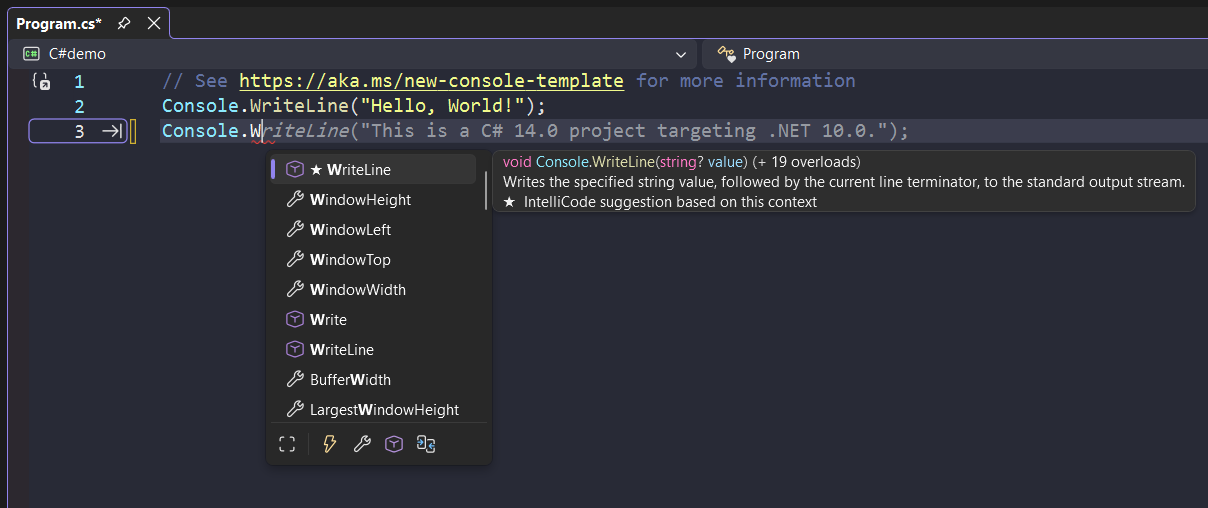
    Photo: Software by Microsoft via Wikimedia Commons (Public domain)

    Most AI writing assistants now ship with inline autocomplete. You type a few words, the tool suggests the rest of the sentence in gray text, and you hit Tab to accept. It feels like a productivity win—until you realize the AI just rewrote your thought in someone else’s voice.

    The problem isn’t that the suggestions are wrong. It’s that they’re different. They add qualifiers you didn’t want, shift your tone toward corporate blandness, and train you to stop mid-sentence waiting for the machine to finish your idea.

    If you’re running a content business where voice matters—newsletters, courses, social posts—autocomplete can quietly erode the thing that makes your work recognizable. Here’s what actually happens when you leave it on, and when to turn it off.

    What autocomplete changes without asking

    Inline AI suggestions don’t just complete sentences. They reframe them. You type “This tool breaks when,” and the AI suggests “you’re working with large datasets or complex integrations.” Maybe that’s true. Maybe you were about to say “you forget to clear the cache.”

    The suggested text is rarely factually wrong—it’s tonally off. It adds hedging language (“typically,” “often,” “in many cases”) that dilutes directness. It defaults to longer constructions when shorter ones work better. It gravitates toward explanatory prose even when you’re trying to be terse.

    Over time, if you accept most suggestions, your drafts start to sound like the training data: smooth, generic, forgettable. That’s fine for internal documentation. It’s a problem if your business depends on readers recognizing your style.

    The cognitive cost of gray text

    Autocomplete creates a new interruption point. You’re mid-thought, the suggestion appears, and you have to decide: accept, ignore, or edit. That decision happens dozens of times per paragraph.

    When the feature works well, it saves keystrokes. When it misfires—suggesting something plausible but wrong—you either reject it manually or accept it and backspace, which is slower than typing the sentence yourself. The calculation flips from “productivity aid” to “cognitive overhead.”

    Some tools let you configure aggressiveness: how many characters you type before suggestions appear, or whether they trigger on punctuation. Claude and similar assistants typically don’t show inline suggestions at all unless you explicitly invoke them, which keeps the writing surface clean. Tools like Notion AI, Jasper, and Google Docs’ Smart Compose fire automatically.

    If you find yourself pausing to wait for the autocomplete instead of finishing your own sentence, the feature has become a dependency. Turn it off for a week and see if your drafting speed actually changes.

    When autocomplete is worth keeping

    There are workflows where autocomplete genuinely helps. Repetitive structures—product descriptions, email templates, FAQ answers—benefit from prediction. If you’re writing the same shape of sentence twenty times, letting the AI fill in the pattern saves real time.

    Technical writing with consistent phrasing also benefits. API documentation, changelog entries, support articles—contexts where voice consistency matters less than structural uniformity. Autocomplete can enforce house style without you thinking about it.

    And if you’re drafting in a second language, suggestions can surface phrasing you wouldn’t have recalled on your own. The trade-off shifts: you care more about fluency than voice, so the AI’s rewriting is a feature, not a bug.

    But for most newsletter operators, course creators, and content-driven solo businesses, autocomplete optimizes the wrong thing. It makes drafting feel faster without making the final output better. Speed at the sentence level doesn’t matter if you have to spend an extra hour in revision reclaiming your voice.

    How to disable it (and what you lose)

    Most tools bury the toggle. In Google Docs, it’s under Tools > Preferences > Show Smart Compose suggestions. Notion AI has a workspace setting under Settings & members > AI > Autocomplete. Grammarly offers it in Account > Customize Grammarly > Tone & Style.

    Turning off autocomplete doesn’t disable the AI entirely. You can still highlight text and ask for rewrites, expansions, or tone shifts. You just stop getting unsolicited suggestions while you type. The AI becomes a tool you invoke, not a copilot hovering over every keystroke.

    What you lose: genuinely helpful completions for boilerplate text, and the occasional phrase that’s better than what you would’ve written. What you gain: uninterrupted flow, fewer decisions per paragraph, and drafts that sound like you from the first pass.

    If you’re not sure whether autocomplete is helping or hurting, try this: draft your next three posts with it off. If you don’t miss it, leave it off. If you find yourself manually invoking the AI for the same repetitive tasks, turn it back on—but set it to manual trigger only, so it waits for you instead of the other way around.

    What’s your autocomplete policy? Reply and let me know if you keep it on, turn it off, or toggle it by project. I’m tracking how solo operators actually use these features in practice.

    Heads up — some links in this article are affiliate links. If you sign up through them, we may earn a small commission at no extra cost to you. We only recommend tools we use ourselves.
  • AI chat context windows: when to clear history and start fresh

    AI chat context windows: when to clear history and start fresh

    AI chat context windows: when to clear history and start fresh
    Photo by kuu akura on Unsplash

    Most solo operators treat AI chat tools like an ongoing conversation—asking follow-ups, refining prompts, building on earlier responses. That’s how the interface encourages you to work. But every AI model has a context window limit, and once you hit it, output quality drops fast.

    The problem isn’t obvious. The chat doesn’t warn you. The model doesn’t stop working. It just starts forgetting earlier instructions, mixing up references, and producing vaguer answers. You assume the prompt was bad. Usually, the issue is that you’re six thousand words deep into a thread that should have been split three responses ago.

    How context windows actually work

    Every message you send—and every response the model generates—consumes tokens from a fixed budget. When you ask a follow-up question, the AI re-reads the entire conversation to understand what you mean. That’s why it remembers what you said five messages ago. It’s also why long threads cost more and perform worse.

    Claude offers a 200,000-token context window on its paid tier. ChatGPT’s GPT-4 variant runs at 128,000 tokens on the higher plans. Gemini Advanced sits at 1,000,000 tokens. Those numbers sound huge—until you realize that a single 3,000-word article draft, plus your original instructions and two rounds of edits, can easily consume 8,000 to 12,000 tokens. Add in a few exploratory prompts, a pasted reference doc, and some back-and-forth clarifications, and you’re at 30,000 tokens before you notice.

    The model doesn’t cut you off when the window fills. Instead, it starts trimming early messages to fit new ones. That means the setup instructions you wrote at the start—your tone guide, output format, audience description—get dropped first. The AI still responds, but it’s now working from a partial brief.

    When to clear and start a new thread

    Start fresh when you switch tasks. If you’ve been drafting email subject lines and now want to outline a blog post, open a new chat. The model will treat old context as relevant even when it isn’t, and you’ll waste tokens on irrelevant history.

    Clear the thread when the AI starts giving generic answers. If responses lose specificity or start repeating earlier phrasing, you’ve likely hit diminishing returns. The model is spending more tokens re-processing old material than synthesizing new output.

    Reset after major revisions. If you’ve pasted in a 2,000-word draft, asked for edits, then pasted a revised version and asked again, you’re now carrying two full copies of similar text in the context window. That’s expensive and confusing for the model. Better to start a new thread with just the current draft and a clean instruction set.

    Reset when you’re working from a template. If you use the same system prompt across multiple projects—like a content brief generator or a headline testing script—save that prompt separately and paste it into a fresh chat each time. Don’t try to reuse a thread from last week. Stale context will bleed into new work.

    What to save before you reset

    Most platforms don’t let you export a single message easily, so copy anything you want to keep before clearing history. That includes:

    • System prompts or instruction sets you plan to reuse
    • Finalized drafts or code snippets
    • Reference lists, outlines, or structures the AI generated that you’ll build on later
    • Any custom terminology or style rules the model learned during the thread

    If you’re on a paid plan with conversation folders or project workspaces, use those to organize threads by task type. Claude‘s Projects feature lets you set persistent instructions that apply to every new chat in that project, so you don’t have to re-paste your brand voice guide every time. ChatGPT’s custom instructions work similarly, though they apply account-wide rather than per-project.

    For operators running high-volume workflows—like batch processing content ideas or generating dozens of ad variants—consider switching to API access instead of the chat interface. The API forces you to manage context explicitly, which makes it easier to control what gets included in each request. You’ll pay per token either way, but you’ll stop accidentally burning budget on dead context.

    One non-obvious trick

    If you’re midway through a long thread and don’t want to lose progress, try summarizing the conversation so far and asking the AI to confirm understanding. Paste that summary into a new chat as your starting prompt. You’ll preserve the useful context while dropping the cruft. This works especially well when you’ve gone through multiple rounds of iteration and only the final decisions matter going forward.

    Most solo operators underestimate how much old context drags on new output. Clearing threads isn’t a failure—it’s maintenance. Treat it like clearing your browser cache: unsexy, invisible, and essential for performance.

    Got a workflow trick that keeps your AI threads clean? Hit reply and share it—we’ll feature the best ones in a future roundup.

    Heads up — some links in this article are affiliate links. If you sign up through them, we may earn a small commission at no extra cost to you. We only recommend tools we use ourselves.