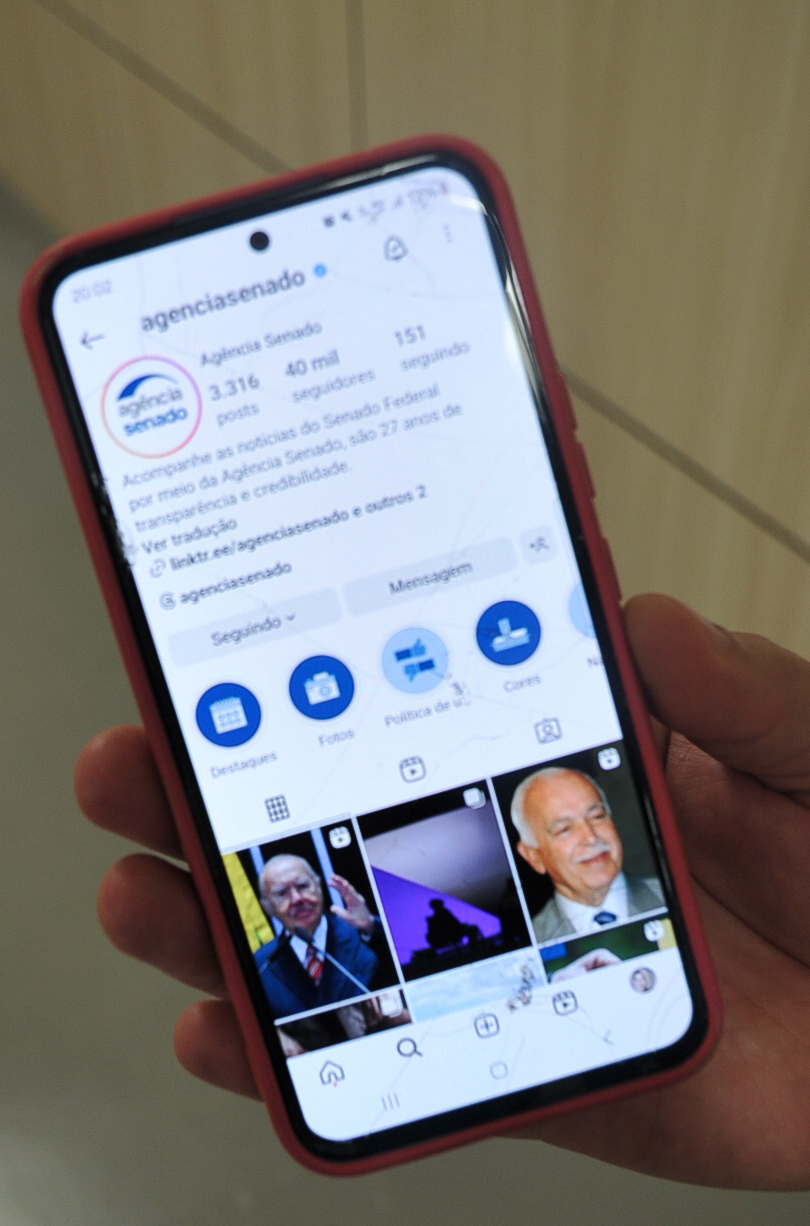
Instagram lets you add alt text to every post, Reel, and Story image. Most operators either skip it entirely or fill it in once during upload and forget it exists. What fewer people realize: you can edit alt text after publication—and there are real reasons to do it.
If you’re running a content-driven business on Instagram, alt text isn’t just an accessibility feature. It’s indexable metadata that can surface your posts in search, and it’s a second chance to clarify context when a caption doesn’t tell the full story.
How to edit alt text after you’ve published
Open the post. Tap the three-dot menu in the top right. Select Edit. At the bottom of the screen (below the caption field), you’ll see Advanced Settings. Tap it. Scroll down to Alt Text. Tap Write Alt Text, edit the field, and save.
The interface hasn’t changed much since Instagram added manual alt text in 2018, but it’s still buried two taps deeper than caption editing. That’s deliberate—Instagram auto-generates alt text using object recognition, and most users never touch it.
For operators, though, the auto-generated version is almost always too generic. A product photo might get tagged as “image may contain: indoor, table, object” when what you actually posted was a course workbook mockup on a desk. The difference matters for search discoverability and for screen-reader users.
When to go back and edit alt text
Three scenarios where editing after publication makes sense:
You published in a rush and skipped it. Common when you’re posting from mobile during a launch or event. Circle back within 24 hours—Instagram’s ranking window for Explore and hashtag feeds is short, but search indexing is ongoing.
The post is evergreen and still getting impressions weeks later. If a carousel or single image keeps showing up in your top posts by reach, adding better alt text can extend its shelf life in search. Check your Instagram Insights for posts with long tails—anything still pulling 100+ impressions per week after 30 days is worth revisiting.
You’re repurposing content across platforms and want consistent metadata. If you cross-post to Facebook (which shares alt text fields), Pinterest, or LinkedIn, editing Instagram’s alt text keeps your asset library uniform. Especially useful if you’re using a scheduler like Publer that can carry alt text forward into future posts.
One non-obvious gotcha
Instagram doesn’t timestamp alt text edits, and it doesn’t notify followers when you change it. That sounds convenient—no “edited” label like you get on captions—but it creates a tracking problem.
If you’re running tests (say, comparing generic vs. descriptive alt text on product posts), you can’t tell from the Instagram app when you made the change. The edit is invisible in your activity log. If you’re A/B testing alt text impact on reach, you need to log the change externally—spreadsheet, notes app, or a dedicated social media tracker.
This also means you can’t reverse-engineer what alt text a competitor used if they’ve edited it. You only see the current version. If you’re researching how other operators optimize for Instagram search, screenshot the alt text the first time you see a post, because it might not be there next week.
What to write (and what to skip)
Alt text should describe what’s in the image, not repeat your caption. Instagram’s guidance says 100 characters or fewer, but the field accepts up to 300. Screen readers handle long alt text fine, but search indexing seems to weight the first 100–125 characters more heavily based on anecdotal testing from accessibility-focused operators.
Skip hashtags, emojis, and brand slogans. Don’t write “Photo of…” or “Image shows…”—screen readers already announce it’s an image. Just describe it: “Laptop on desk with coffee mug and open notebook” beats “Image may contain: electronics, beverage, indoor.”
If the image contains text (quote graphic, announcement, tutorial screenshot), transcribe the key text in the alt field. Instagram’s auto-recognition doesn’t do OCR reliably, so “Launch day: 300 subscribers in 48 hours” is better alt text than “text, screenshot.”
For carousels, you write separate alt text for each image. Tap into edit mode, swipe to the image you want to describe, open Advanced Settings, and write the alt text for that slide. It’s tedious for 10-slide carousels, but if you’re repurposing a carousel as a lead magnet or using it in ads later, front-loading that work pays off.
Does it actually affect reach?
Instagram has never confirmed that alt text is a ranking signal for Explore or hashtag feeds. But it’s confirmed that alt text feeds into search—both the general search bar and the newer keyword search that rolled out in 2024. If someone searches “newsletter dashboard screenshot” and your alt text says exactly that, you have a better shot at surfacing than if Instagram auto-tagged it as “screenshot, text, computer.”
Anecdotally, operators who’ve back-filled alt text on 50+ evergreen posts report small upticks in profile visits from search—5–10% over 60 days. Not explosive, but enough to make it worth 15 minutes of cleanup work.
More importantly, it’s a file-keeping habit that saves time later. If you ever export your Instagram content (for a portfolio, a website gallery, or a course), having real alt text instead of auto-generated garbage makes the migration cleaner.
Want this in your inbox? One Two Three Send breaks down one tool, tactic, or workflow decision every day—no fluff, just what works for operators running online businesses. Subscribe at the top of the page.
Heads up — some links in this article are affiliate links. If you sign up through them, we may earn a small commission at no extra cost to you. We only recommend tools we use ourselves.