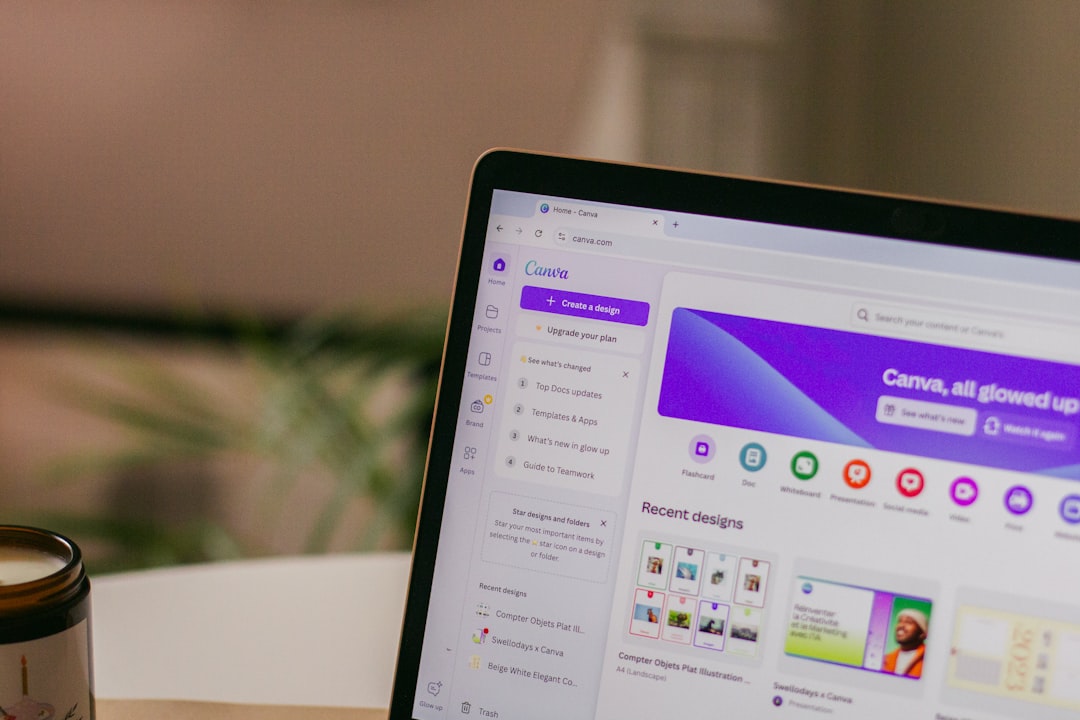
Most solo operators treat Canva like a template library. You find a design you like, swap in your text and images, export, and move on. But once you’re creating social graphics, lead magnets, and course slides every week, the template-first workflow breaks down—you’re re-entering hex codes, re-uploading logos, and hunting for that one font name you used last month.
Canva’s Brand Kit feature solves this by centralising your visual identity in one place. Every colour, font, and logo you define in the Brand Kit syncs across all your designs. Change your primary colour once, and it updates everywhere. Upload a new logo version, and it’s available in every project without re-uploading.
It sounds simple, but the time savings compound faster than most operators expect—and there are a few non-obvious quirks worth knowing before you commit your entire visual system to it.
What Brand Kit actually stores
Brand Kit isn’t just a folder. It’s a structured data layer that Canva injects into every design canvas you open. Specifically, it holds:
- Colour palette — up to 12 colours on the free plan, unlimited on Pro. These appear as swatches in every colour picker.
- Fonts — up to 3 font pairings (headline + body) on free, unlimited on Pro. Canva auto-suggests these when you add text boxes.
- Logos — up to 3 logo files on free, 50+ on Pro. They appear in a dedicated “Your logos” panel, separate from your generic uploads.
The key difference: Brand Kit assets are persistent across sessions and devices. Your uploaded images sit in your “Uploads” folder and can get buried. Brand Kit assets are always one click away, in the same spot, every time.
When Brand Kit beats templates
Templates are great for one-off designs or exploring new layouts. But if you’re running a content operation—weekly newsletters, daily social posts, monthly lead magnets—Brand Kit becomes the faster option once you cross a threshold:
You’re creating 5+ designs per week. At that cadence, manually applying your brand colours and fonts wastes 2–3 minutes per design. Over a month, that’s an hour. Over a year, it’s 12+ hours of copy-pasting hex codes.
You’re repurposing content across formats. If you turn a blog post into a carousel, an email header, and a Pinterest pin, Brand Kit ensures all three use the exact same blue (#2E5BFF, not #2E5CFF). Templates don’t enforce consistency—Brand Kit does.
You rebrand or iterate your visual identity. Change your primary colour in Brand Kit, and every design you open from that point forward uses the new value. Templates don’t update retroactively—you’d need to manually edit every saved template file.
The sync quirks nobody mentions
Brand Kit syncs forward, not backward. If you update a colour in your Brand Kit, it won’t auto-update designs you’ve already published. You’ll need to re-open each old design, click the colour swatch, and re-apply the updated palette. This isn’t automatic.
Font syncing is even less intuitive. If you remove a font from your Brand Kit, designs that used it will still render—but the font picker will stop suggesting it. If you then open that old design on a device where the font isn’t cached, Canva will substitute a fallback (usually Inter or Roboto). The result: your archived Instagram posts suddenly have the wrong typeface.
Logo uploads have a resolution ceiling. Canva compresses uploads over 25 MB, and even on Pro, logo files over 100 MB will fail silently. If you’re working with print-quality vector files, export a web-optimised PNG or SVG at 2x your largest canvas size (usually 2000–3000px wide) before uploading.
One non-obvious tip: use Brand Kit as a design system, not a brand bible
Most operators set up Brand Kit once and never touch it. Better approach: treat it as a working palette that evolves with your content. If you’re testing a new accent colour for CTA buttons, add it to your Brand Kit temporarily. If it works, keep it. If not, remove it. The kit should reflect what you’re actually using in production, not what you decided in a brand workshop two years ago.
One useful workflow: create a “seasonal” or “campaign” colour slot in your palette. Rotate it every quarter. This keeps your designs feeling fresh without requiring a full rebrand, and it gives you permission to experiment within a constrained system.
If you’re creating more than a handful of designs per week, spend 10 minutes setting up your Brand Kit properly. Define your core colours, lock in your fonts, and upload logo variants (horizontal, stacked, icon-only). The upfront setup pays back in saved clicks within a month—and in visual consistency for as long as you keep publishing.
Want more tool breakdowns like this? Subscribe to One Two Three Send for weekly deep-dives on the software solo operators actually use—no fluff, just the features that matter.