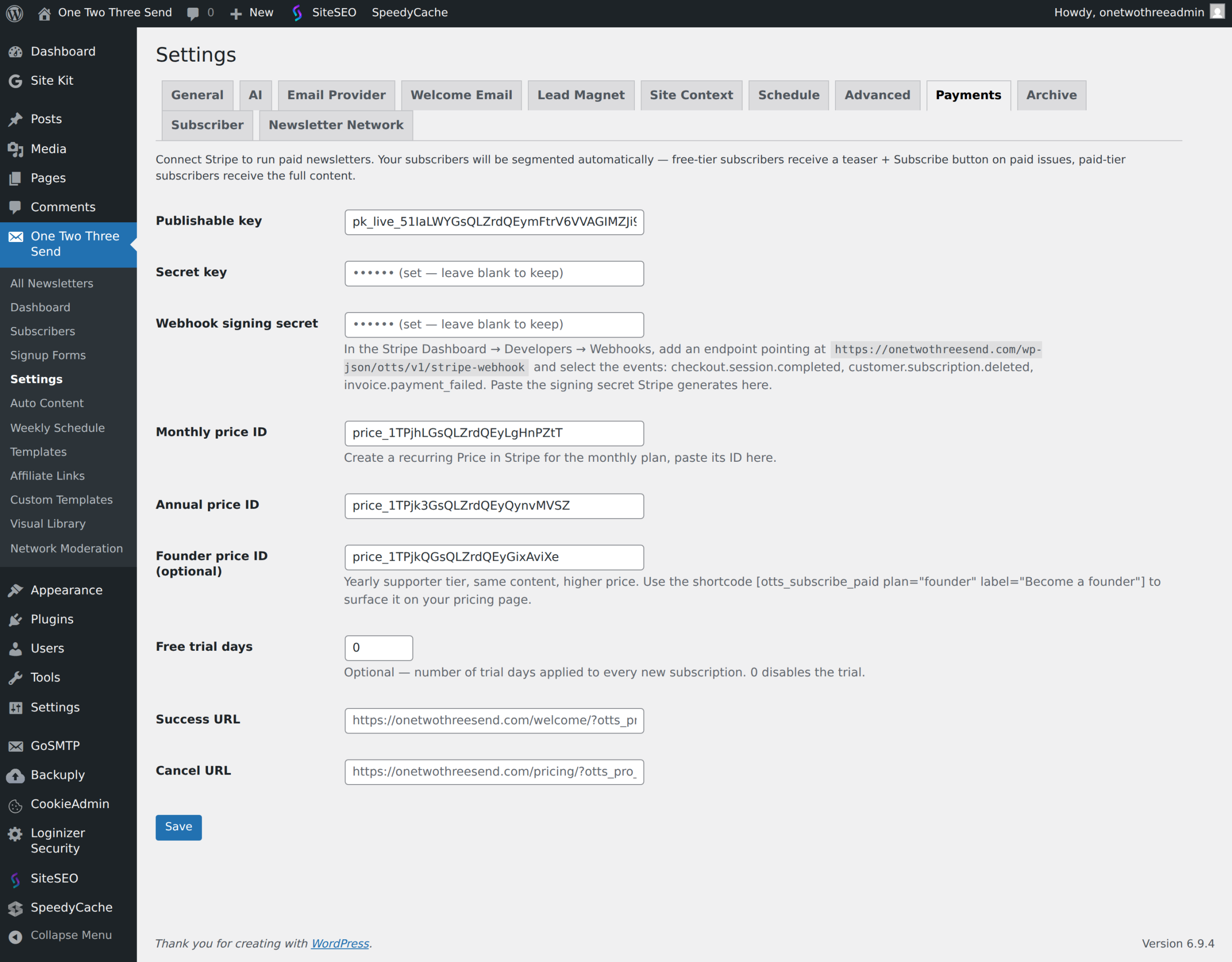
Stripe offers two ways to collect payment without building a full checkout flow: payment links and checkout sessions. They look similar on the surface—both generate a Stripe-hosted page where customers enter their card details—but they solve different problems and scale differently.
If you’re selling a course, accepting sponsorships, or launching a paid tier, knowing which tool to reach for saves you from either over-engineering or outgrowing your setup in three months.
What payment links do well
Payment links are static URLs you generate once in the Stripe dashboard. You pick a product, set a price, click “Create link,” and get a URL like buy.stripe.com/abc123. You paste that into an email, a Notion page, a Linktree, or anywhere else.
They’re dead simple. No code. No integration. You can create one in under 60 seconds.
They work best when:
- You’re selling one or two products with fixed pricing
- You want to test demand before building infrastructure
- You need to send a payment request to a specific person (e.g., a sponsor invoice)
- You’re embedding buy buttons in no-code tools like Carrd or Notion
The trade-off: payment links are not dynamic. You can’t pass custom data, adjust pricing per customer, or trigger complex logic after payment. Every link points to the same product at the same price. If you want to sell three tiers, you need three separate links.
When checkout sessions make more sense
Checkout sessions are generated programmatically via Stripe’s API. Instead of a static URL, your server (or a tool like Zapier, Make, or a membership plugin) creates a unique session each time someone clicks “Buy.” That session can include custom line items, coupon codes, customer metadata, or pre-filled email addresses.
You need a bit of code—or a tool that wraps the API—but you get control in return.
Checkout sessions shine when:
- You’re selling multiple SKUs or pricing tiers from one page
- You want to pass user data (email, name, UTM params) into Stripe’s metadata
- You need to apply dynamic discounts or generate invoices on the fly
- You’re integrating with a CRM, membership site, or email platform that reacts to purchase events
For example: if you run a course platform and want to tag buyers in ConvertKit the moment they pay, a checkout session can include the buyer’s email and course ID in metadata. A webhook listens for checkout.session.completed, pulls that metadata, and fires the tag. Payment links can’t do that.
Pricing and limits
Both options use the same Stripe transaction fees: 2.9% + 30¢ for cards in the U.S. There’s no additional cost for using payment links vs. sessions.
Payment links support subscriptions, one-time payments, and even “customer chooses price” donation-style flows. Checkout sessions support the same, plus more flexibility around tax collection (Stripe Tax), installment plans, and multi-currency pricing.
One gotcha: payment links expire after 90 days of inactivity if you’re on a free Stripe account and haven’t processed volume recently. Checkout sessions expire after 24 hours by default (you can extend this to 30 days), but they’re generated fresh each time, so expiration is rarely an issue in practice.
Which one to pick
Start with a payment link if you’re testing, selling one thing, or need something live in the next five minutes. It’s faster than building anything, and you can always upgrade later.
Move to checkout sessions when you need:
- Dynamic pricing or product selection
- Integration with your CRM, ESP, or membership tool
- Custom metadata or post-purchase automation
- A branded checkout domain (Stripe lets you use
checkout.yourdomain.comwith sessions, not links)
Most solo operators start with payment links for their first product, then switch to sessions once they’re running webinars, cohort courses, or tiered sponsorships. The migration is straightforward—your Stripe account, customer data, and reporting stay the same. You’re just changing how the checkout URL gets generated.
If you’re already using WordPress and want a middle ground, plugins like WP Simple Pay generate checkout sessions without writing code. You build a shortcode-based button, and the plugin handles the API call behind the scenes.
One more thing: whichever option you pick, turn on Stripe’s email receipts in your dashboard settings. A shocking number of operators forget this, and customers assume the payment didn’t go through when they don’t get confirmation. That’s a support ticket you don’t need.
Want more breakdowns like this? Reply and tell us which tool or feature you’re trying to figure out—we’ll cover it in a future issue.