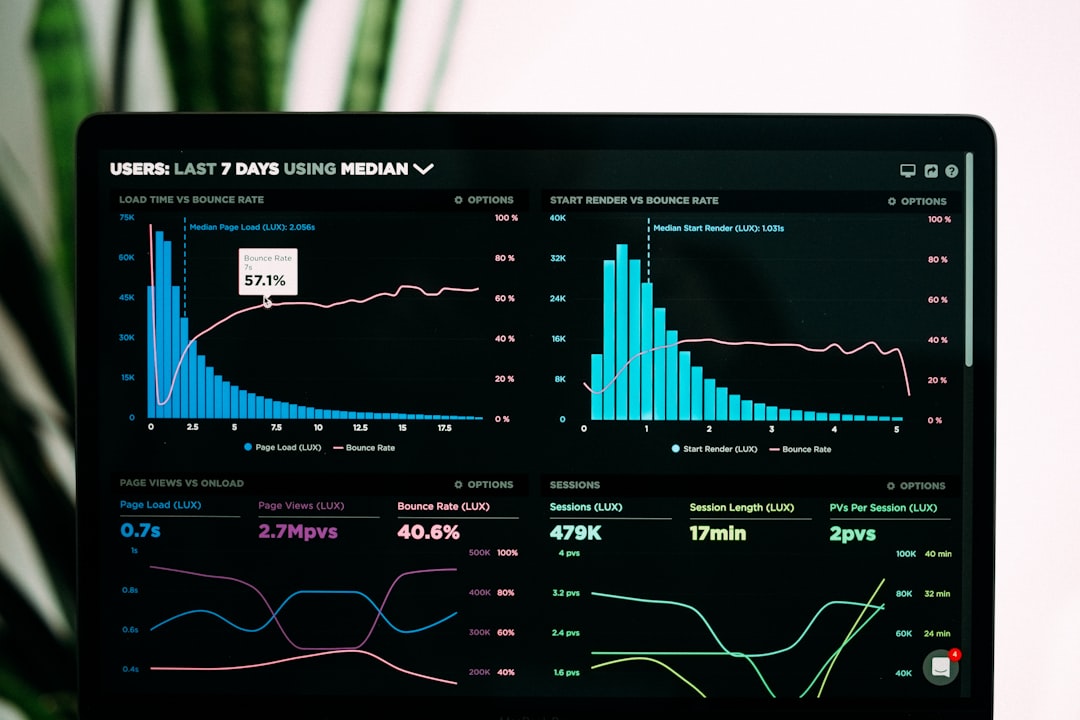
Open any automation tool dashboard and you’ll see a stat like “You’ve saved 47 hours this month.” It sounds impressive. It might even justify your subscription cost. But if you dig into how that number is calculated, you’ll find three completely different methodologies—and none of them hold up under scrutiny.
Solo operators rely on productivity tools to buy back time. But when the metrics used to prove that value are inconsistent, opaque, or flat-out wrong, you’re making renewal decisions on bad data.
Method one: assumed task duration
Most automation platforms calculate time saved by assigning a fixed duration to each task they complete. Zapier might assume sending an email takes 2 minutes. Make might estimate copying a row to a spreadsheet takes 1 minute. Run 500 tasks, and the dashboard tells you that you’ve saved 16 hours.
The problem: these durations are arbitrary. Sending a templated email via automation might replace 30 seconds of manual work—not 2 minutes. Copying a row might take 10 seconds if you’re already at your keyboard. The tool has no idea how long you actually take to do the task manually, so it guesses high.
This method inflates savings by 3–5x in most cases. If you’re paying $50/month and the dashboard claims you’ve saved 40 hours, that’s $1.25 per hour saved using the tool’s math. Reality might be closer to $6.25 per hour—still worth it, but not as dramatic.
Method two: step count multiplication
Some tools count the number of actions in a workflow and multiply by an assumed per-step time cost. A five-step Zap that runs 100 times becomes 500 steps, and if each step is pegged at 30 seconds, you’ve “saved” 4.2 hours.
This breaks down fast. Steps in an automated workflow often happen in parallel or take milliseconds. A human doing the same task wouldn’t perform five discrete steps—they’d open a tool, paste some data, and click save. That’s one action, maybe 20 seconds total.
Step-count multiplication also penalizes efficient workflows. If you refactor a ten-step Zap into a three-step Make scenario that does the same thing, your “time saved” metric drops by 70%, even though the outcome is identical. The dashboard now makes it look like you’re less productive, which is backwards.
Method three: user-reported baselines
A few platforms—mostly project-management and time-tracking hybrids—ask you to estimate how long a task used to take before automation. The tool then subtracts the new duration (often zero) and credits you with the difference.
This is the most honest approach, but it’s also the least common. It requires operators to input realistic baselines, and most of us are terrible at that. We overestimate how long manual work took because we remember the frustration more than the clock time. A task that felt like it took 10 minutes might have been 3.
Even when baselines are accurate, this method only works if the task was something you actually did manually before. If the automation enables a new workflow—like auto-posting to three social networks instead of just one—there’s no baseline to compare against. The time saved is theoretically infinite, which is meaningless.
What operators should track instead
Ignore the dashboard’s “time saved” stat. It’s marketing, not measurement. Instead, track two things:
- Tasks completed per week: Count how many workflows fire successfully. If your automation suite handles 200 tasks a week that you’d otherwise do manually, estimate your per-task time (be honest), and multiply. That’s your real time saved.
- Revenue per hour worked: If automation lets you publish more content, send more pitches, or onboard more clients without adding hours, your revenue per hour should climb. That’s the metric that actually matters.
Most automation platforms don’t surface these numbers by default. You’ll need to export task logs and do the math in a spreadsheet. It takes 15 minutes a month, and it’s the only way to know if your productivity stack is paying for itself.
Want more breakdowns of how online-business tools actually work? Subscribe to One Two Three Send and get one operator-focused article every day.